
Passkeys & Two-Factor Authentication
You can protect a username-and-password Sogni account with a passkey (Touch ID, Face ID, Windows Hello, or a security key), an authenticator app, or both. Once turned on, signing in requires a fast second confirmation step after your password.
Your Sogni password still signs you in first because it unlocks your Sogni wallet. A passkey saved for sogni.ai works across Sogni Web (app.sogni.ai), Sogni Dashboard (dashboard.sogni.ai), Sogni Chat (chat.sogni.ai), Sogni Vibe (vibe.sogni.ai), Sogni Photobooth (photobooth.sogni.ai), Sogni Restore (restore.sogni.ai), and Sogni web apps that sign in through app.sogni.ai.
Check these requirements before turning two-factor authentication on:
- Native apps and Worker Mode: Two-factor authentication works on Sogni Web (
app.sogni.ai), Sogni Dashboard (dashboard.sogni.ai), Sogni Chat, Sogni Vibe, Sogni Photobooth, and Sogni Restore. Mac Worker Mode and the native apps for Mac, iPhone, and iPad do not support two-factor sign-in yet. If you use those apps with this account, leave two-factor authentication off for now. While a Mac running Worker Mode is connected to your account, Sogni disables Set up until you quit Worker Mode on that Mac. - Verified email address: Your account must have a verified email address first. Sogni emails that address whenever two-factor settings change, with a link to lock your account if you did not make the change.
- Google or Apple sign-in accounts: Accounts created with Sign in with Google or Sign in with Apple manage two-factor authentication inside that Google or Apple account instead. If you have a username-and-password account with Google or Apple linked, sign in with your Sogni username and password to manage two-factor settings. Once Sogni two-factor authentication is on, signing in to that account with a linked Google or Apple login also requires your Sogni second factor.
#How to add a passkey
Once your email address is verified, you can turn on two-factor authentication from the Add two-factor authentication reminder card after signing in (select Set up 2FA on Sogni Web, or Set up on Sogni Dashboard, which opens the password prompt directly) or anytime later:
- Sogni Web: Open the account menu → Manage account (or go to app.sogni.ai/account), find Two-factor authentication, and select Turn on (or Manage if it is already enabled).
- Sogni Dashboard: Open the account menu → Two-factor authentication on dashboard.sogni.ai.
- Sogni Chat, Sogni Vibe, Sogni Photobooth, and Sogni Restore: Open the account menu → Two-factor authentication to jump straight to your two-factor settings on
app.sogni.ai.
Then follow these steps:
- Select Set up next to Passkey (or Add to register an additional passkey). Dashboard's reminder Set up button skips straight to Step 2.
- Enter your Sogni password (and an authenticator or backup code if the form asks for one), then select Continue. If you already have a passkey on the account, your browser asks you to confirm with it after you select Continue (or choose Use a code instead before continuing).
- Select Create passkey and follow your browser's prompt.
- Using Chrome on a Mac and want the passkey on your iPhone or iPad too? Stop before touching Touch ID and follow Syncing a passkey across Apple devices below so it saves to Apple Passwords instead of Google Password Manager.
- If you are turning two-factor authentication on for the first time, save your 10 backup codes somewhere private and offline (using Download or Copy), check I saved my backup codes, and select Done. Each code works once if you lose access to your device. Adding another passkey later keeps your existing backup codes.
#Syncing a passkey across Apple devices
Using Chrome on a Mac? Choose Apple Passwords so your passkey syncs to your iPhone and iPad.
By default, Google Chrome on macOS offers to save new passkeys in Google Password Manager (or your local Chrome profile) rather than Apple Passwords (iCloud Keychain). If you accept that default, Safari on your iPhone or iPad will not see the passkey and will report that you have no passwords or passkeys saved for sogni.ai.
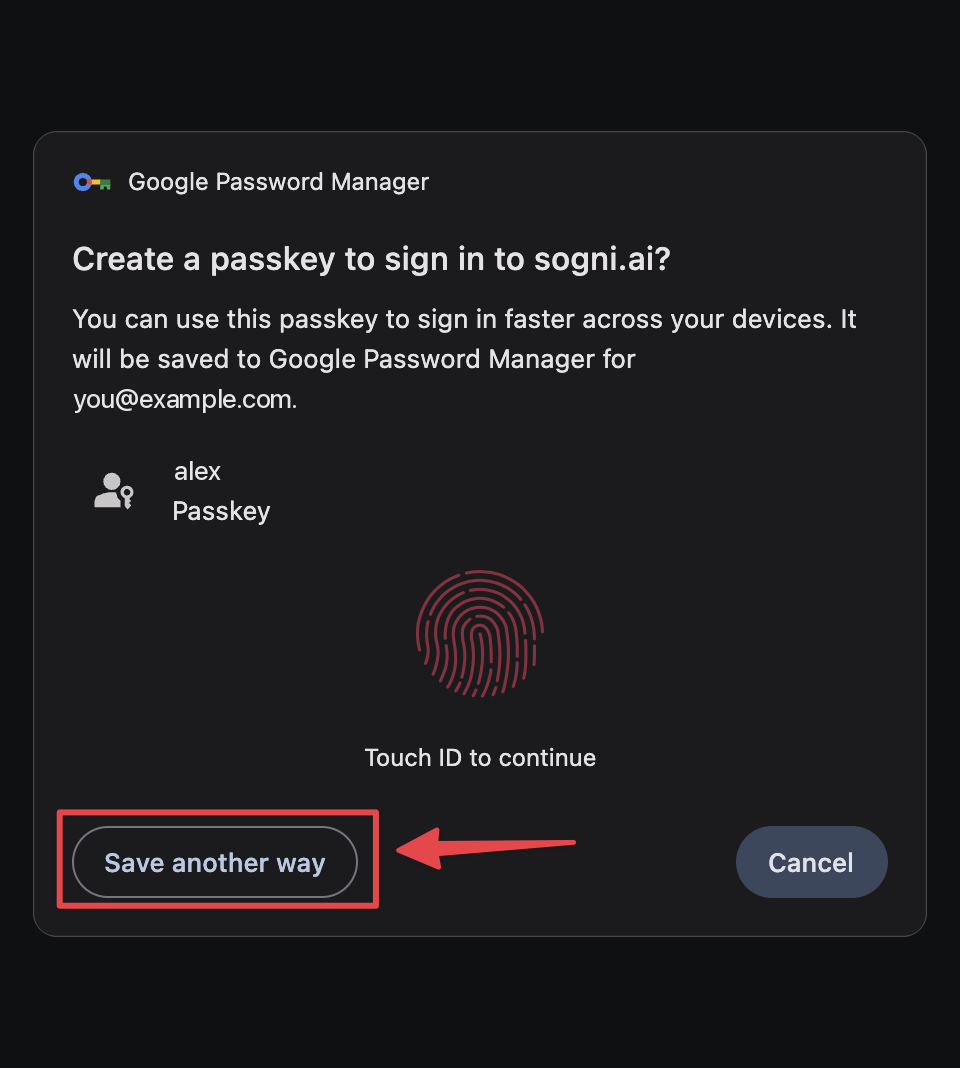
When Chrome shows the Create a passkey to sign in to sogni.ai? prompt on your Mac:
- Click Save another way in the bottom-left corner instead of using Touch ID right away.
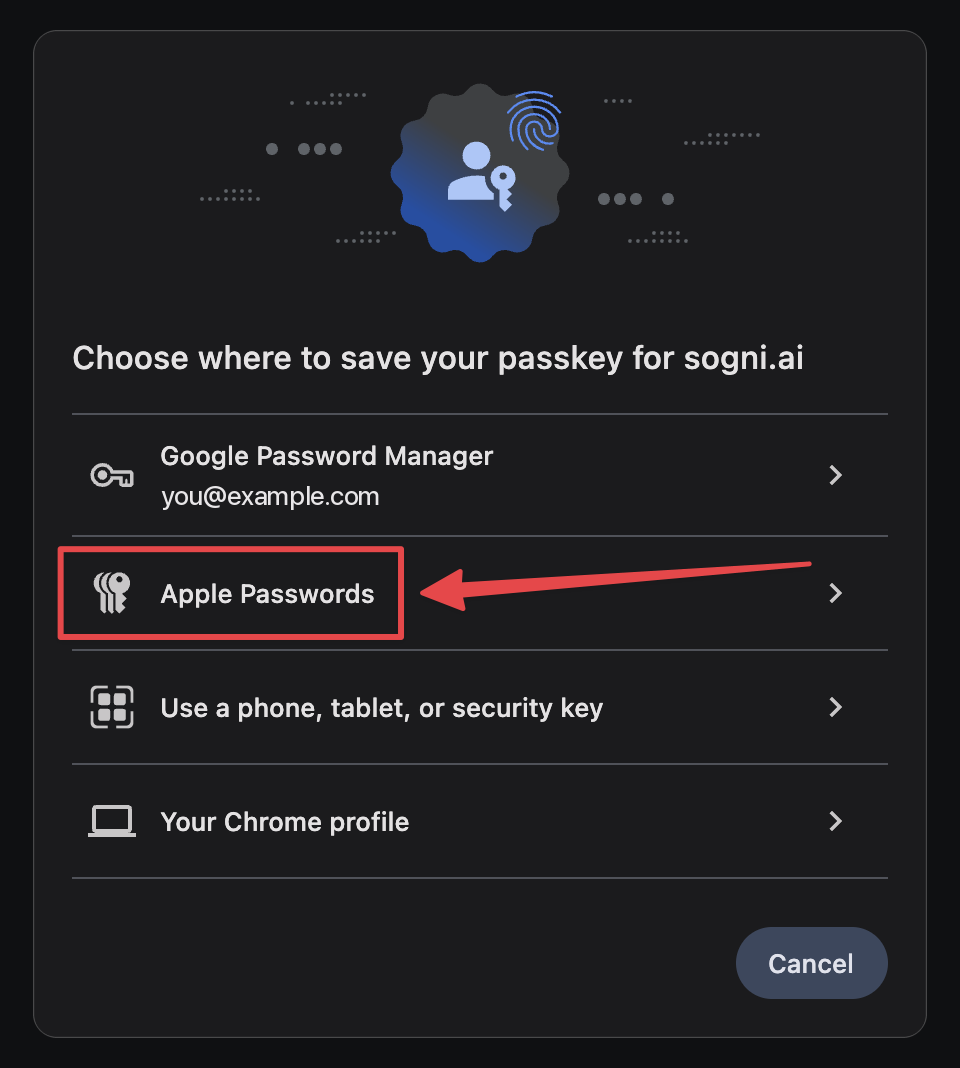
- On Choose where to save your passkey for sogni.ai, choose Apple Passwords (labeled iCloud Keychain on macOS 14 Sonoma and earlier), then confirm with Touch ID or your Mac password.
#Apple sync checklist
For a passkey saved in Apple Passwords to appear across your Apple devices:
- Same Apple Account with two-factor authentication: Sign in to the same Apple Account on your Mac, iPhone, and iPad, with Apple Account two-factor authentication enabled.
- Mac: Open System Settings → [Your Name] → iCloud → Saved to iCloud (See All) → Passwords (labeled Passwords and Keychain on macOS 14 and earlier) and turn on Sync this Mac. Keep iCloud Drive turned on as well when creating passkeys from Chrome. If macOS prompts to let Chrome access passkeys in Apple Passwords / iCloud Keychain, click Allow.
- iPhone or iPad: Open Settings → [Your Name] → iCloud → Saved to iCloud (See All) → Passwords and turn on Sync this iPhone (or iPad). Then open Settings → General → AutoFill & Passwords (on iOS 17, Settings → Passwords → Password Options), turn on AutoFill Passwords and Passkeys, and make sure Passwords (or iCloud Passwords & Keychain) is enabled.
- Safari on Mac: Passkeys created in Safari save to Apple Passwords by default unless you enabled a third-party passkey manager in System Settings → General → AutoFill & Passwords.
#Already created a passkey in Chrome and iPhone Safari can't find it?
You do not need to turn two-factor authentication off. Sogni supports multiple passkeys on one account, so you can add an Apple Passwords passkey and remove the old one afterward:
- In Chrome on your Mac, open Two-factor authentication (Manage on Sogni Web) and select Add.
- Enter your password, select Continue, and confirm with your existing Chrome passkey.
- Select Create passkey, then in Chrome's prompt click Save another way → Apple Passwords and confirm with Touch ID.
- Check that
sogni.aiappears in the Passwords app on your iPhone (or Settings → Passwords on iOS 17) and test signing in with Safari on your iPhone. - Once it works, you can optionally remove the old passkey from Two-factor authentication (Manage on Sogni Web).
Prefer Google Password Manager, 1Password, or Bitwarden on iPhone Safari? If your passkey is stored in a cloud-synced password manager rather than Apple Passwords, install and sign in to that app on your iPhone (for Google Password Manager, install Chrome and turn on password sync), then open Settings → General → AutoFill & Passwords and enable it under AutoFill From. Safari on iPhone will then offer passkeys from that provider. A passkey saved to Your Chrome profile stays on that single Mac and cannot sync.
#Safari on Mac shows a QR code when you sign in or add a passkey?
If your only registered passkey lives in Chrome rather than Apple Passwords, Safari on Mac cannot find it and falls back to showing a QR code ("Scan this QR code with a compatible device to sign in to sogni.ai"). This happens both when signing in to Sogni in Safari and on the identity-check step before adding a new passkey.
To get past it in Safari:
- Click Cancel on the QR code prompt.
- Select Use a code instead (on the Set up a passkey confirmation dialog, your password stays filled in).
- Enter an authenticator code or one of your backup codes, then select Continue to finish signing in or reach Create passkey.
Alternatively, add the Apple Passwords passkey from Chrome using the steps above so you do not need to use a backup code.
#Authenticator apps and backup codes
You can also connect an authenticator app (such as Google Authenticator, 1Password, or Apple Passwords) instead of or alongside a passkey:
- Open Two-factor authentication (Turn on or Manage on Sogni Web) and select Set up next to Authenticator app.
- Enter your password (and confirm with your existing factor if two-factor is already enabled), then select Continue.
- On desktop, scan the QR code (or select Can't scan it? Enter a key instead) with your authenticator app. On a phone or tablet, select Open authenticator app (or Use a QR code or key instead).
- Enter the 6-digit code and select Turn on (or Add app if you already have a passkey).
- Save the 10 backup codes shown on screen, check I saved my backup codes, and select Done. Adding an authenticator app replaces any earlier set of backup codes once confirmed.
From Two-factor authentication (Manage on Sogni Web), you can also add extra passkeys, remove a passkey, select Get new codes for a fresh set of backup codes (which invalidates previous unused codes), or select Turn off two-factor authentication. Removing an authenticator app on its own requires turning two-factor authentication off; removing your last passkey when no authenticator app is connected also turns two-factor authentication off.
#Signing in and recovery
Once two-factor authentication is on, sign in with your Sogni username and password as usual:
- Sogni Web (
app.sogni.ai), Sogni Dashboard (dashboard.sogni.ai), Sogni Chat (chat.sogni.ai), Sogni Vibe (vibe.sogni.ai), Sogni Photobooth (photobooth.sogni.ai), and Sogni Restore (restore.sogni.ai): If your account has a passkey, select Use passkey right in the sign-in dialog (or Use a code instead for an authenticator or backup code). If you use only an authenticator app, enter the 6-digit code (or select Use a backup code). - Other Sogni web apps using
app.sogni.aisign-in: Enter a 6-digit authenticator code or backup code in the dialog, or select Sign in with a passkey to confirm throughapp.sogni.aiand return signed in.
The second sign-in step expires after 5 minutes (log in again if it times out), and 5 failed tries trigger a 5-minute wait.
- Lost every passkey, authenticator app, and backup code? Email [email protected] with your Sogni username and account email so support can verify your identity and reset two-factor authentication. Never send your password, wallet private key, recovery phrase, or one-time codes.
- Got a two-factor change email you didn't expect? Open the one-time link under "If this wasn't you" in that email (valid for 7 days) and select Lock my account on the confirmation page. Opening the link alone does not lock your account until you select Lock my account. Locking signs out every session, revokes all API keys, cancels any pending email change, and emails a confirmation — reply to that email from the same address so support can help you recover and re-secure your account (and recreate any API keys afterward).
See also: Account Types & Sign-in · Forgot Your Sogni Web Password? · Mac Studio Password Recovery