Using the Workers Dashboard
dashboard.sogni.ai/fast-workers is the main place to monitor and, for supported workers, configure Sogni Fast Workers. Sign in with the Sogni account that owns the worker.
Use the dashboard to:
- Check whether each Fast or Relaxed worker is online and see its current model.
- Configure email downtime alerts.
- Open an individual worker's live status, health, care, settings, job history, and earnings.
- Configure every operator-tunable setting exposed by a current Comfy Worker without editing its
.envfile. - Compare jobs, reliability, efficiency, earnings, and model mix over 7, 30, or 90 days.
#Fleet overview and downtime alerts
The Workers page groups every worker owned by the signed-in account. Select the Fast or Relaxed network, filter by worker type, and choose All for an aggregate view or select one worker for its details.
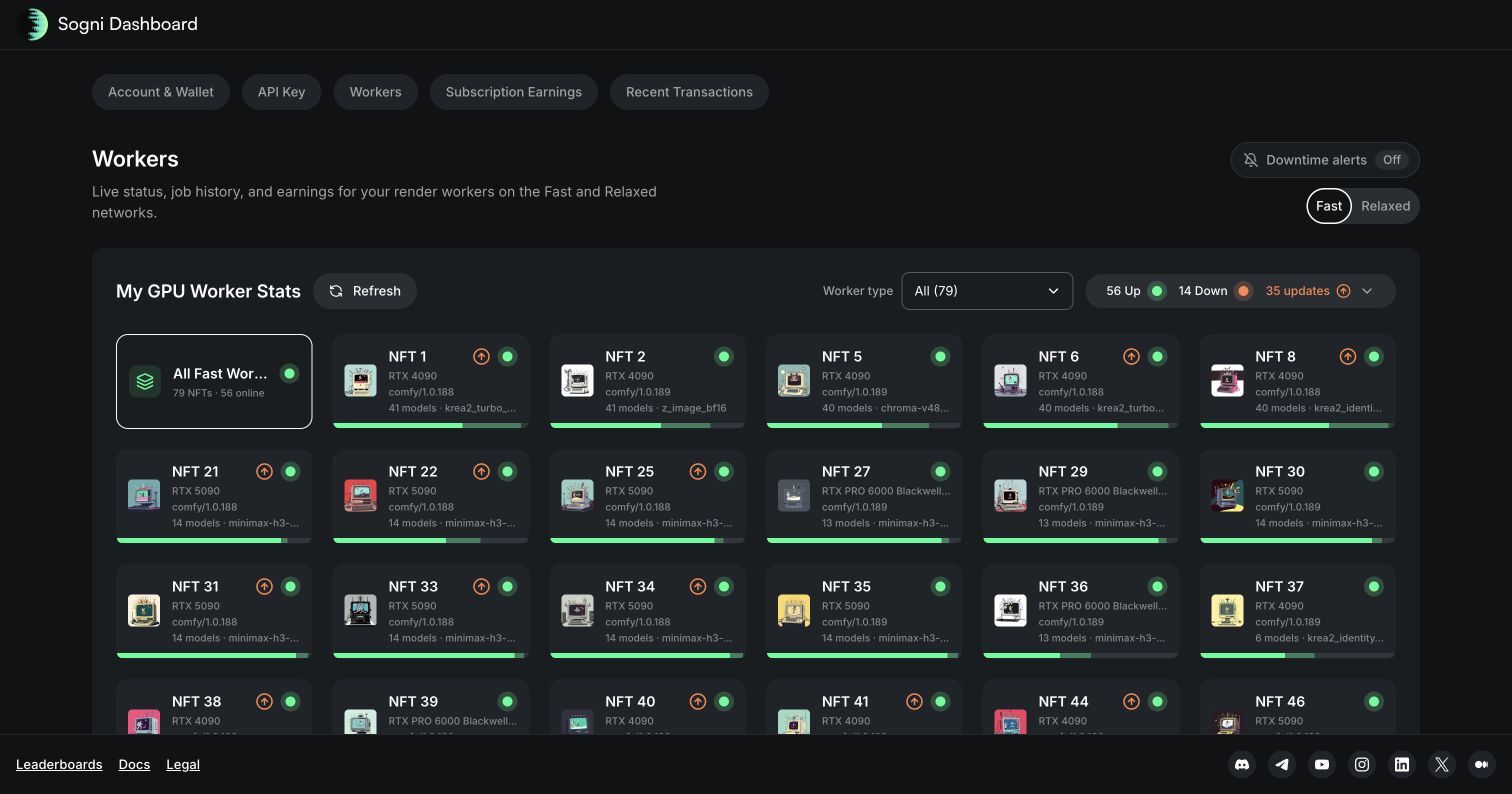
The Downtime alerts control applies to every Fast and Relaxed worker on the account. Choose how long a worker must remain offline before the dashboard emails you. A recovery email is sent when it reconnects. Repeated connect/disconnect events from the same worker are quieted after the first alert cycle for the rest of that day.
Alert delivery uses the email address on the account. Use Change in the alert panel to update it.
#Worker status and configuration
Select an individual worker to see its version, GPU, active model, connection history, active job, recent failures, and operational tabs.
#Settings
Current Sogni Comfy Workers expose their complete remote operator-settings catalog in the Settings tab. Each setting is backed by the same environment variable used in .env, but the dashboard renders it as a validated switch, number field, workflow picker, or clearly labeled choice. The worker must be online and support remote configuration. The tab first appeared with Comfy Worker 1.0.189; use the latest supported release for the current catalog and live-apply behavior. LLM Worker configuration remains deployment-managed.
The catalog covers hardware protection, served workflows and startup priority, optional models for mature themes, model and user-LoRA downloads, disk limits, startup warmup, and out-of-memory recovery. Compatible macOS workers also publish their power, idle, thermal-throttling, and free-memory policies. Credentials, worker identity, provider secrets, and centrally managed Supernet behavior are intentionally not dashboard settings.
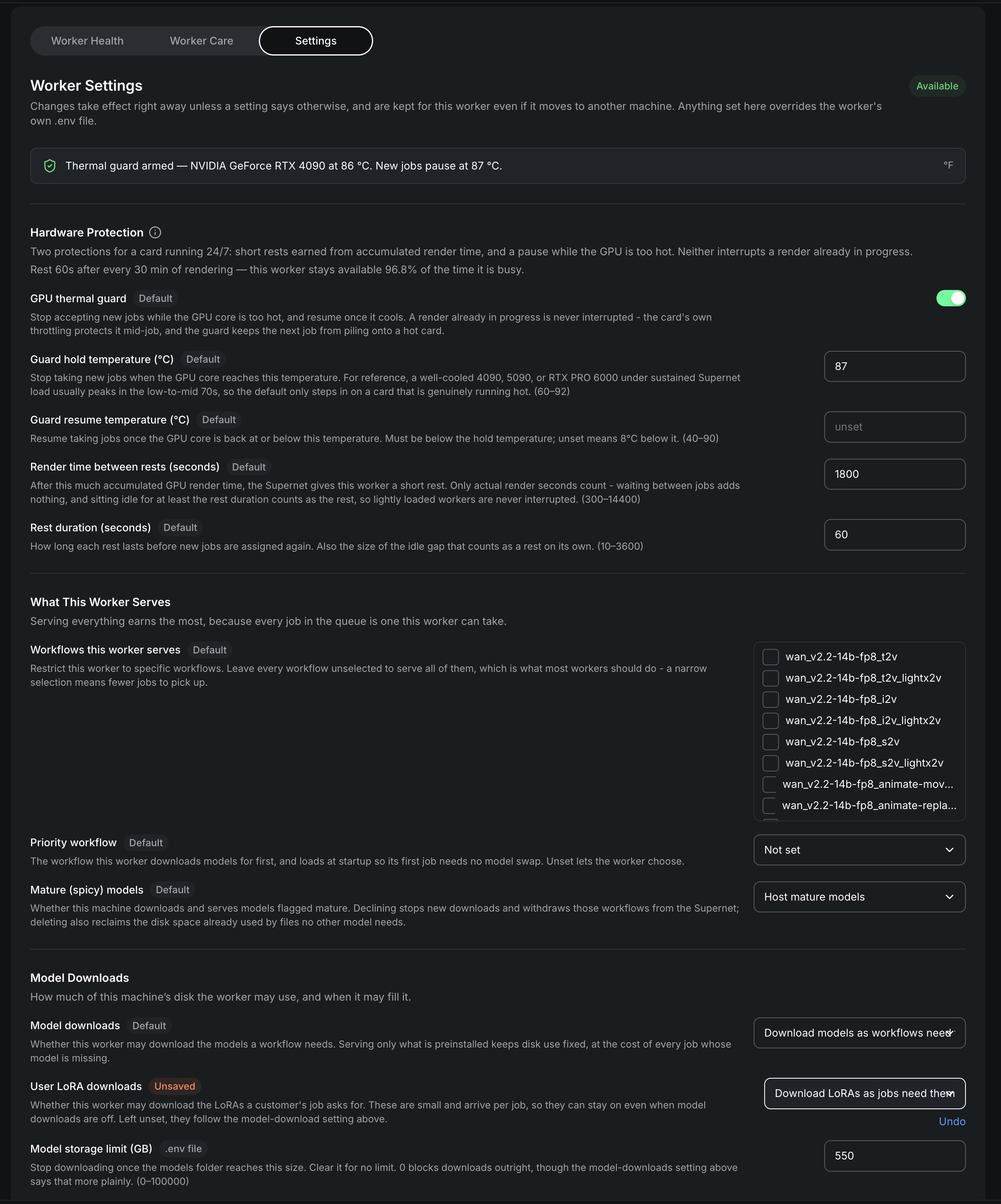
The dashboard labels each setting's effective source:
- Default — supplied by the worker.
- .env file — supplied by the local or hosting environment.
- Dashboard — a saved remote override with highest precedence.
It also labels settings that require a restart. Live settings apply without canceling an active render, while restart settings take effect the next time the worker starts. Use Clear override to return to the .env value or built-in default.
Dashboard overrides are stored in the worker's persistent data directory. For a compatible worker, the Supernet also keeps a best-effort copy keyed to the Fast Worker NFT and restores missing overrides when that NFT reconnects on a fresh machine. An existing local override wins. See Advanced Configuration for precedence, recovery behavior, persistence, hardware safeguards, and every supported setting.
#Worker Health
Worker Health reports the current run, restart history, startup stages, and rolling GPU telemetry. Depending on the worker and host, this can include GPU core temperature, VRAM, utilization, power, host CPU, and host memory.
The GPU panels show both the current reading and the reporting-window peak or average. On the temperature view, an enabled thermal guard adds its hold threshold as a dashed line, making it easy to see when the worker is approaching the point where it will pause new jobs. The chart reports its telemetry sample interval; the guard itself checks the GPU every 20 seconds and never interrupts a render already in progress.
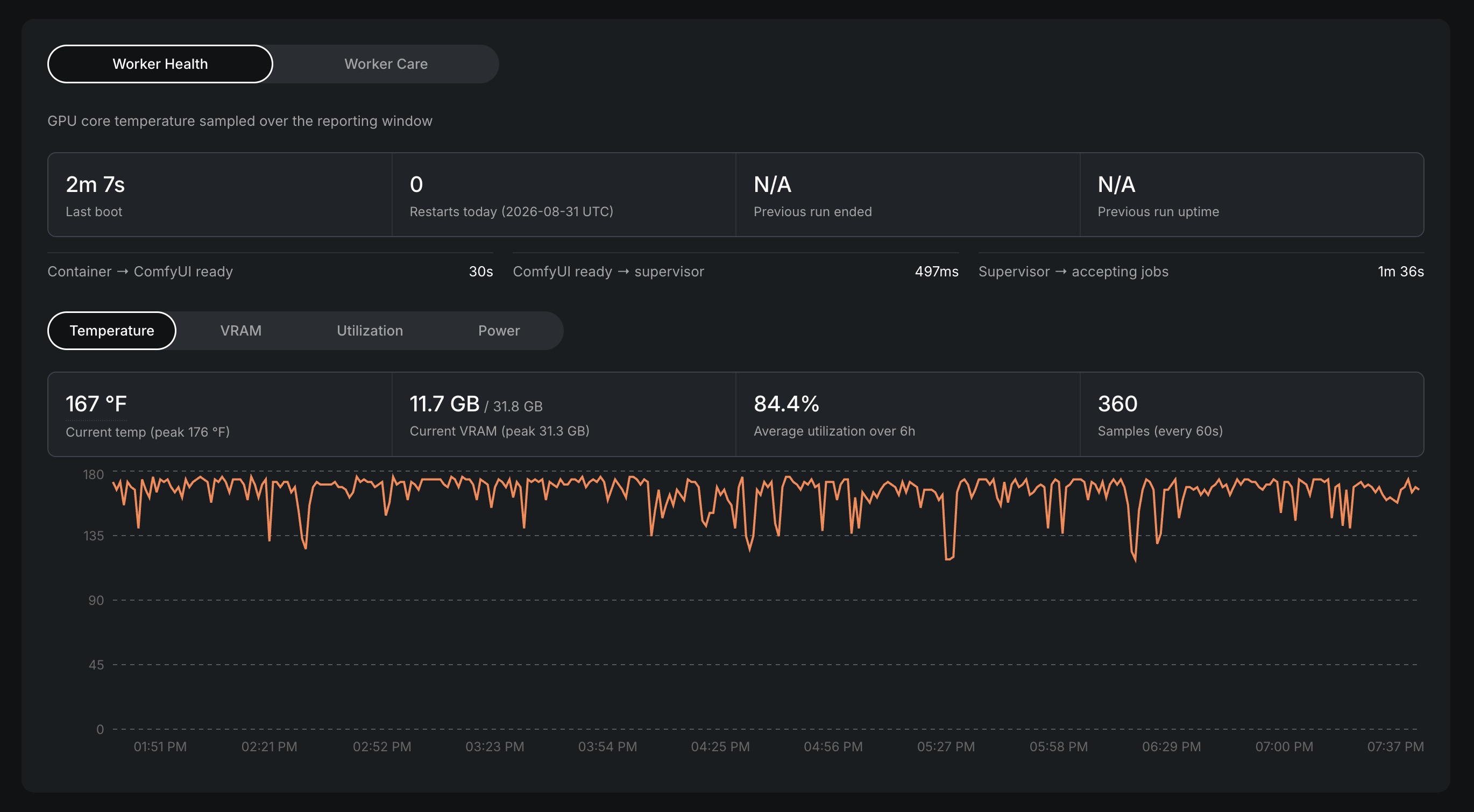
The Settings tab reports the same guard as armed while the worker is accepting jobs or paused to cool down while the hold is active. Telemetry is operational evidence, not a replacement for independent hardware monitoring or adequate physical cooling. See Protecting your hardware.
#Worker Care
Worker Care retrieves a fresh, bounded health snapshot and lets the owner search or copy source-redacted runtime logs. Logs remain on the worker until requested. Review the displayed scope and the copied text before sharing it; the operator remains responsible for any diagnostic data they disclose.
#Job history
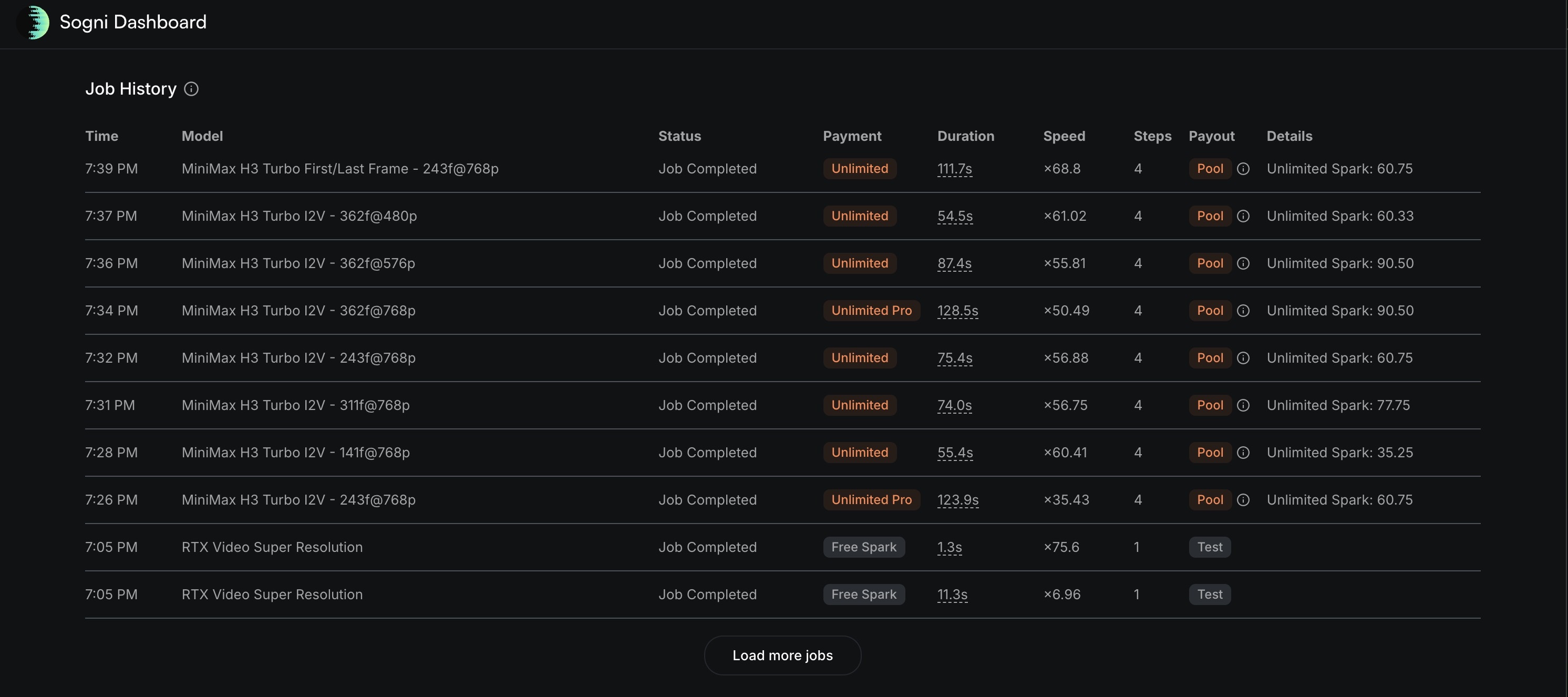
Job History lists recent completed and failed work with its model, payment type, duration, speed, step count, payout class, and estimated Spark details. Use Load more jobs to extend the history.
#Daily worker statistics
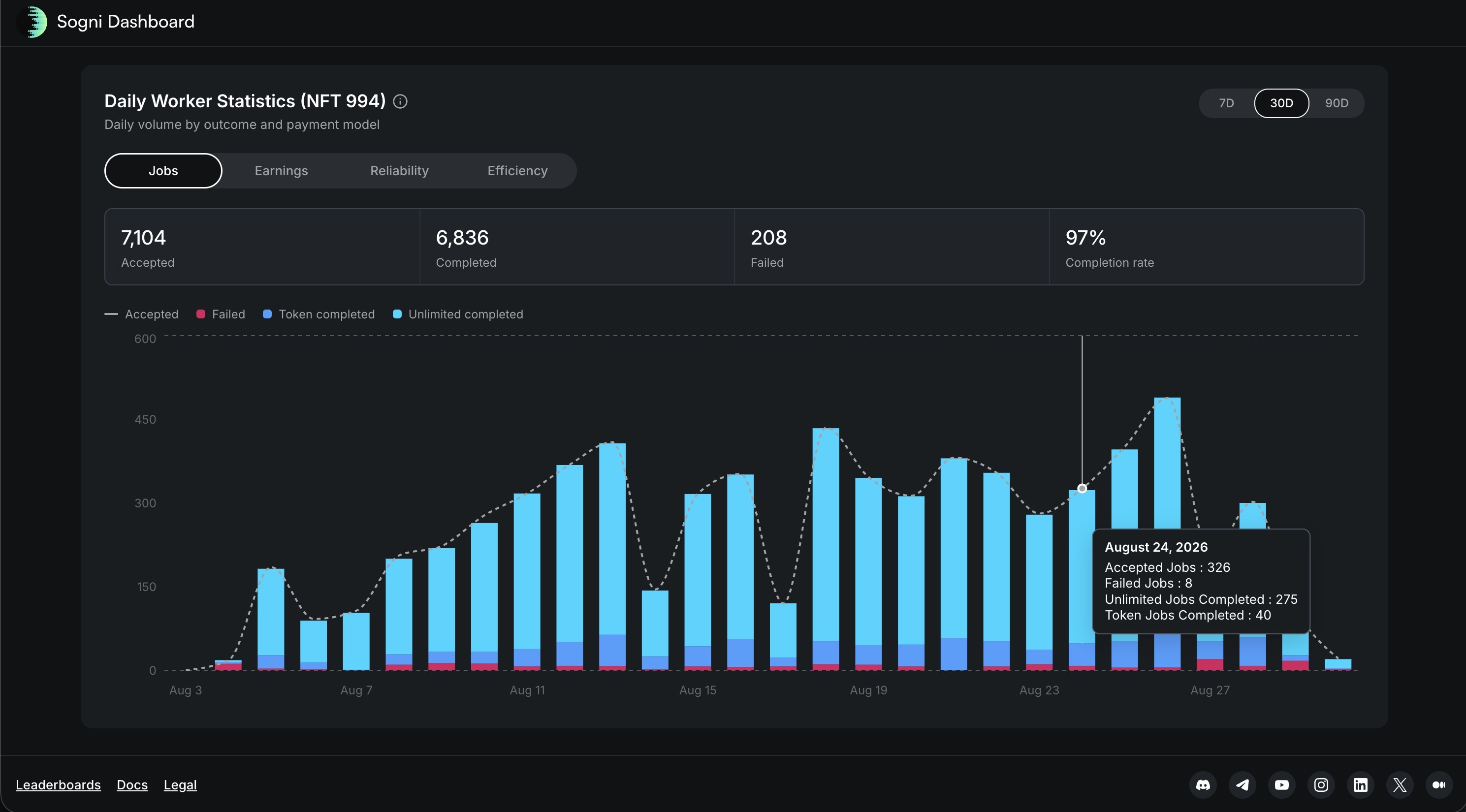
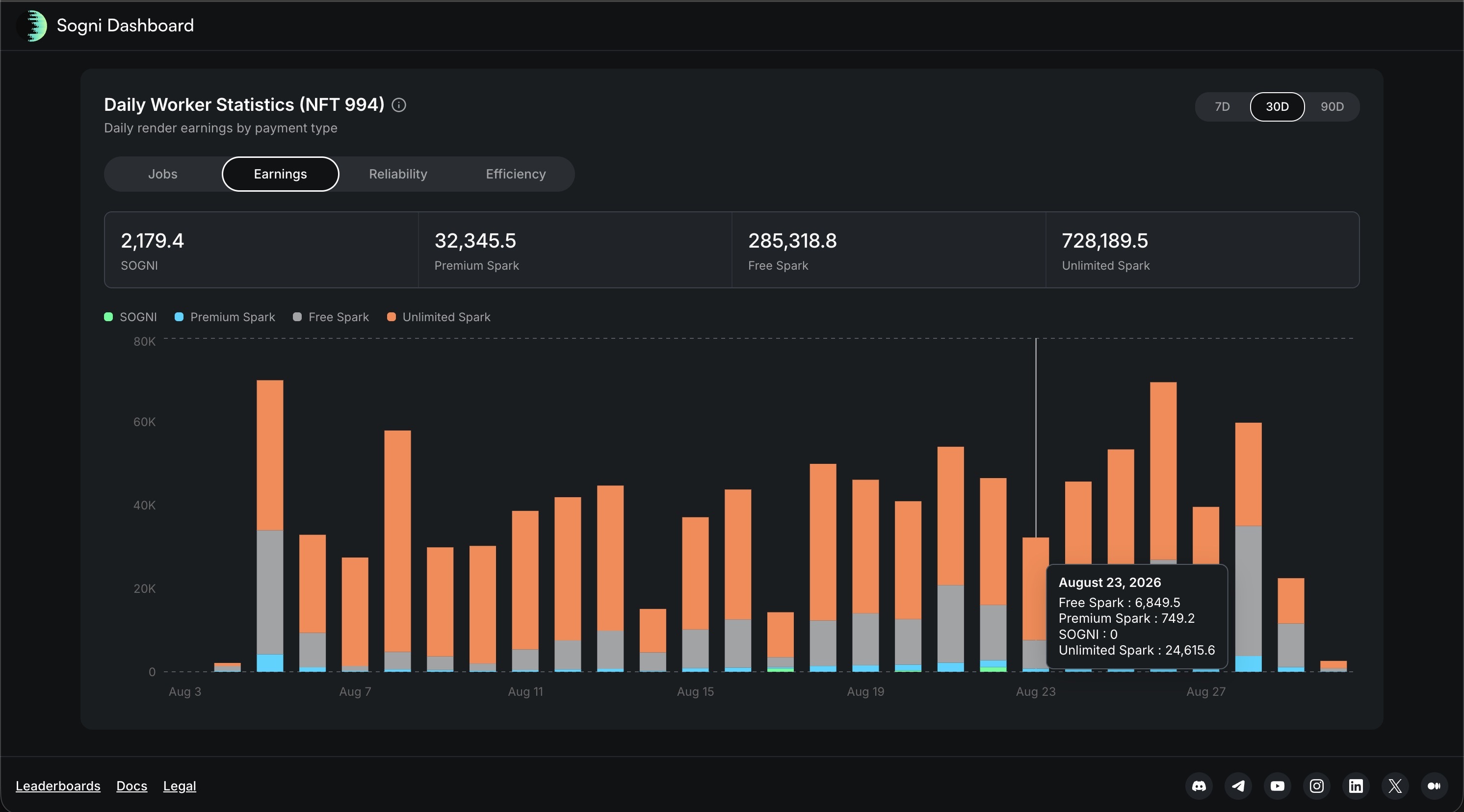
The 7-day, 30-day, and 90-day controls change the reporting window. The available tabs are:
- Jobs — accepted, completed, failed, and completion rate, with daily completed-job categories.
- Earnings — daily SOGNI, Premium Spark, Free Spark, and Unlimited Spark value.
- Reliability — connection and successful-completion behavior over the selected period.
- Efficiency — connected time split between working and inactive time, plus daily utilization.
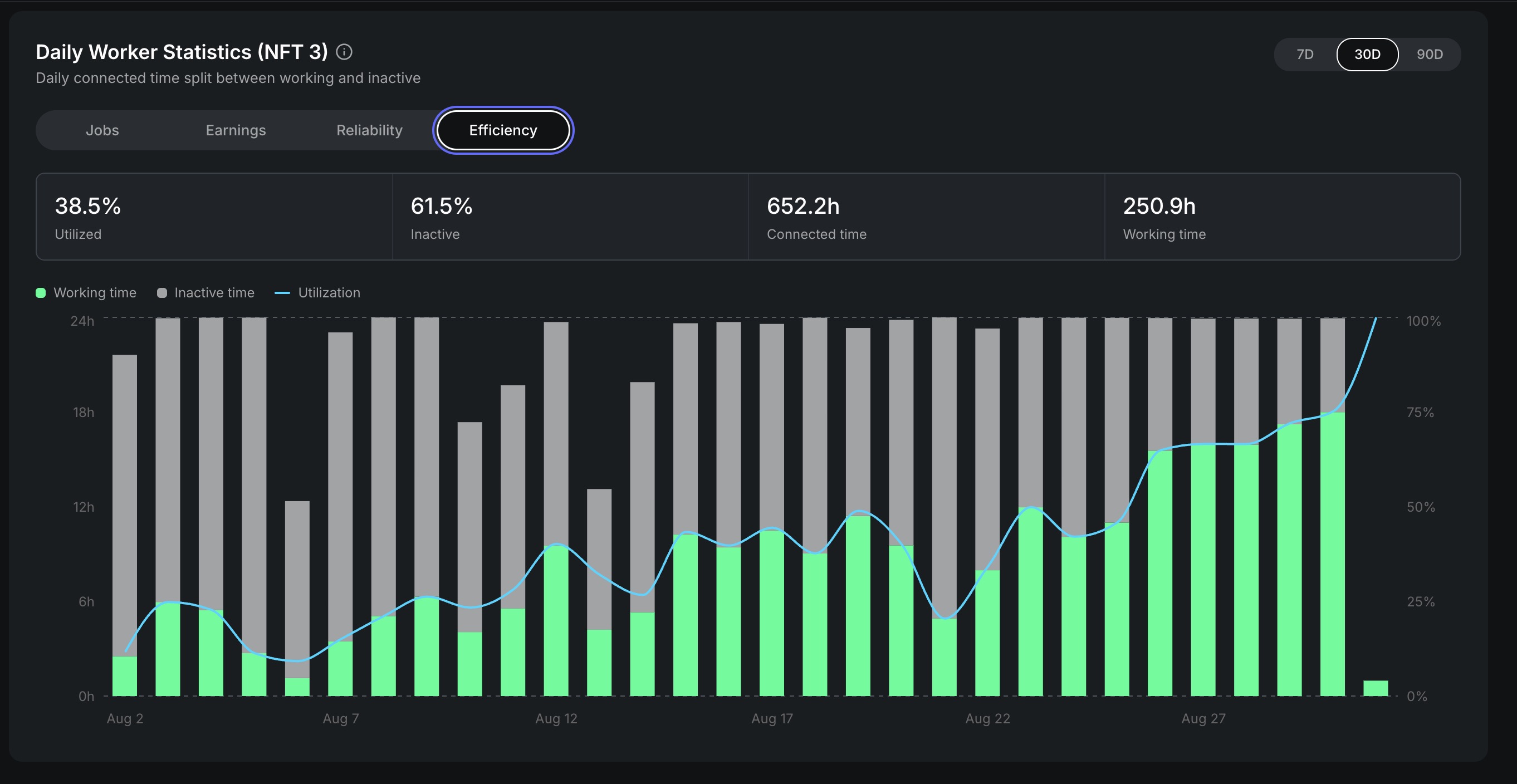
Efficiency measures how the worker uses the time it is connected; it does not measure how quickly an individual render finishes. Green is time spent working, gray is connected but inactive time, and the utilization line is working time ÷ connected time. The summary cards calculate the same split across the entire selected window. An upward utilization trend therefore means the worker spent a larger share of its connected time rendering.
Hover or focus a chart date to inspect its exact daily values. Where a dashboard card explicitly says UTC Day or UTC Yesterday, its calendar boundary is UTC rather than the browser's local time.
#Earnings and performance
For context on the figures, see What an Nvidia GPU earns on Sogni in Sept 2026. The article combines observed ComfyUI worker activity with explicit September pool-growth and uptime assumptions. Its forecasts are before operating costs; use this dashboard for your own live results.
The worker view separates today's and yesterday's payment types and summarizes estimated USD and SOGNI earnings. Its performance table compares UTC day, UTC yesterday, and lifetime counts and values.
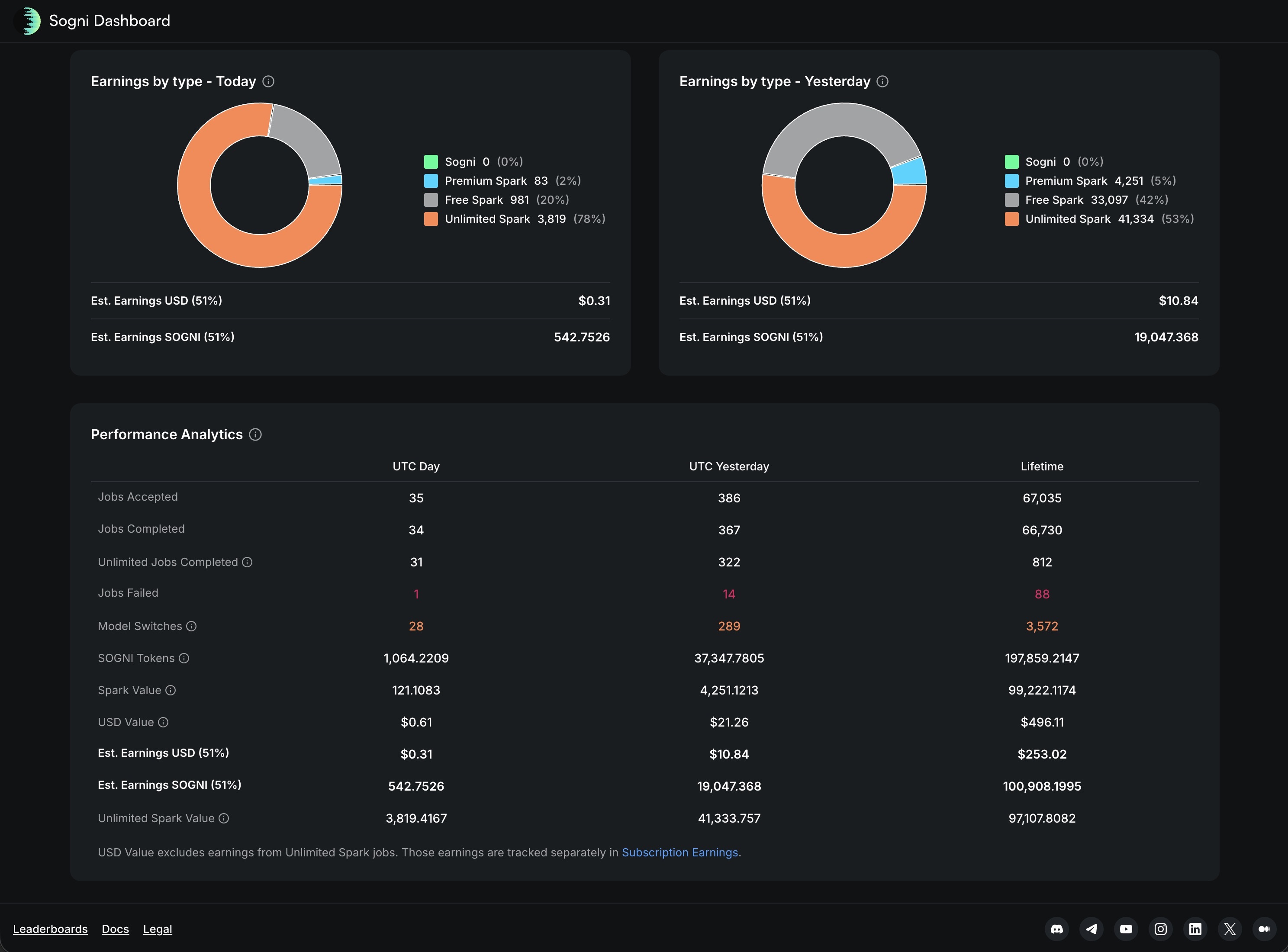
Regular paid-job earnings and optional Unlimited subscription revenue follow different accounting paths. Use Subscription Earnings for participation and pool details, and see Worker revenue share for the program terms. Follow Receive subscription earnings in USDC to link a payout wallet and receive finalized earnings on Base.
The Subscription Earnings page separates revenue-share progress into three states:
- Finalized — confirmed earnings from finalized months, including amounts already paid.
- Awaiting payout — finalized earnings still to be paid once your wallet is active, the minimum is met, and Sogni processes a payout run.
- Paid out — earnings already sent to your linked payout wallet.
The participation control on that page lets an eligible account's Mac and NVIDIA workers accept Unlimited subscription-covered jobs in addition to regular Spark and SOGNI work. Estimates and screenshots are informational, not a guaranteed payout; the finalized program calculation and terms control.
#Work done by model
Work Done by Model shows how the selected worker's estimated Spark value is distributed across models. The summary identifies the leading model, total eligible models, completed jobs, and online Fast-worker availability for each model.
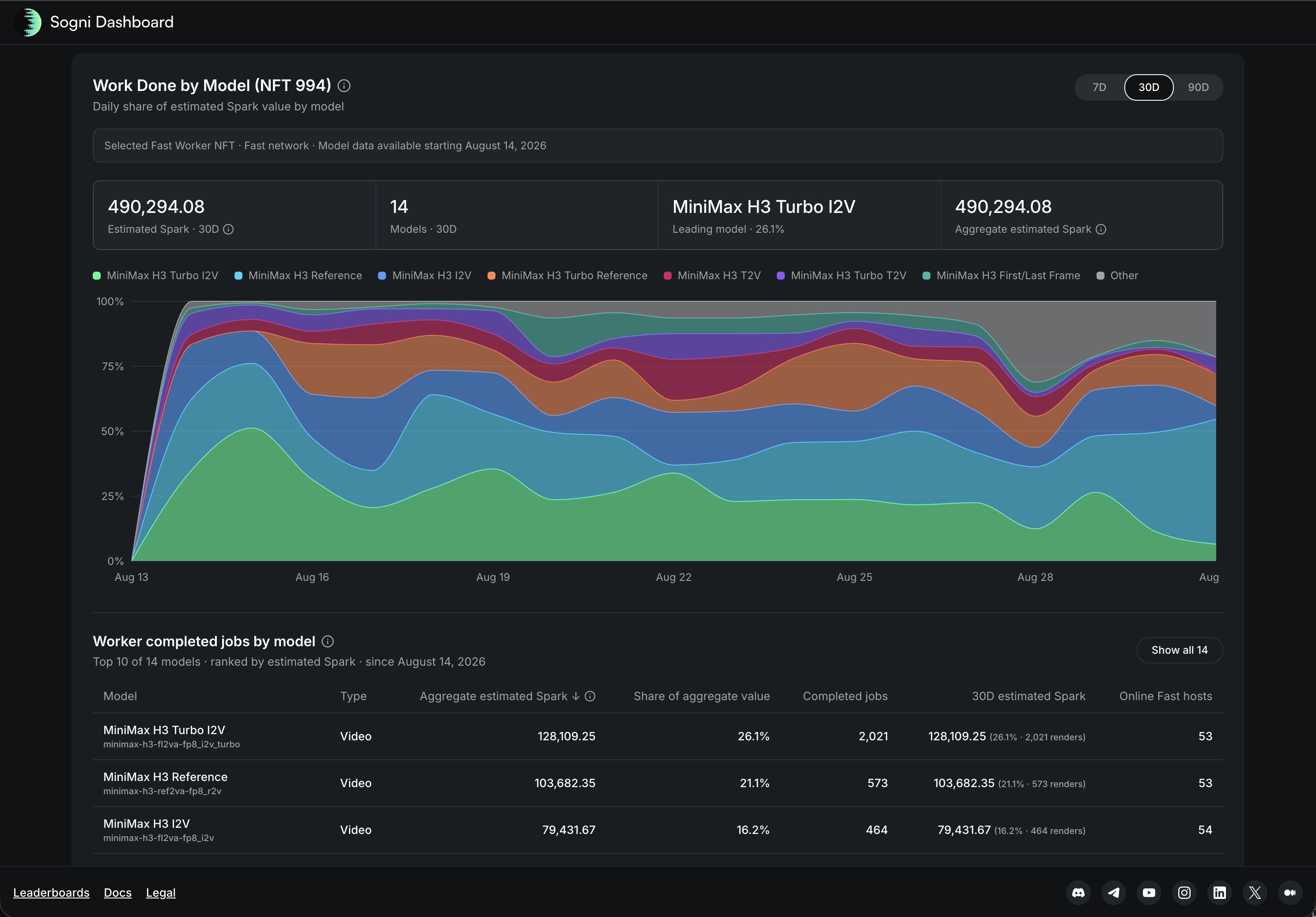
Model availability and workload mix change as the production catalog changes. Use the dashboard for current operational data instead of treating a documentation screenshot as a forecast or guaranteed workload.
#Public worker view and privacy
An individual Fast Worker can also have a shareable /fast-workers/{wallet}/{nftId} dashboard URL. Signed-out viewers receive a limited public view. Earnings require a signed-in Sogni account, while operator-assigned worker nicknames, care, settings, alerts, and participation controls are owner-only. Do not use a public link as a substitute for owner authentication when changing configuration or reviewing private account data.