
Clip Mixer
The Clip Mixer lets you join multiple video clips into a single continuous video. You can drag clips directly from your Gallery or from your Mac, reorder them freely, and control how differences in frame rate, speed, and aspect ratio are handled during export.
This is ideal for building longer sequences from multiple generations, extending motion across clips, or assembling variations into a final cut.
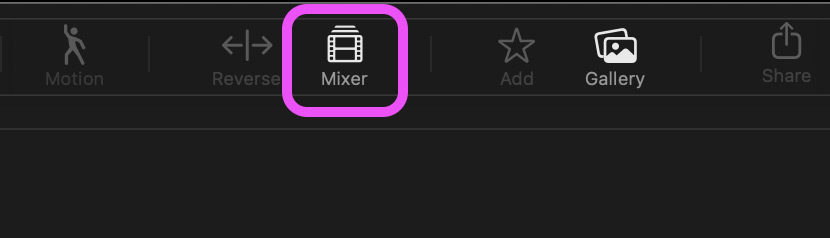
Click the Mixer button in the top toolbar.
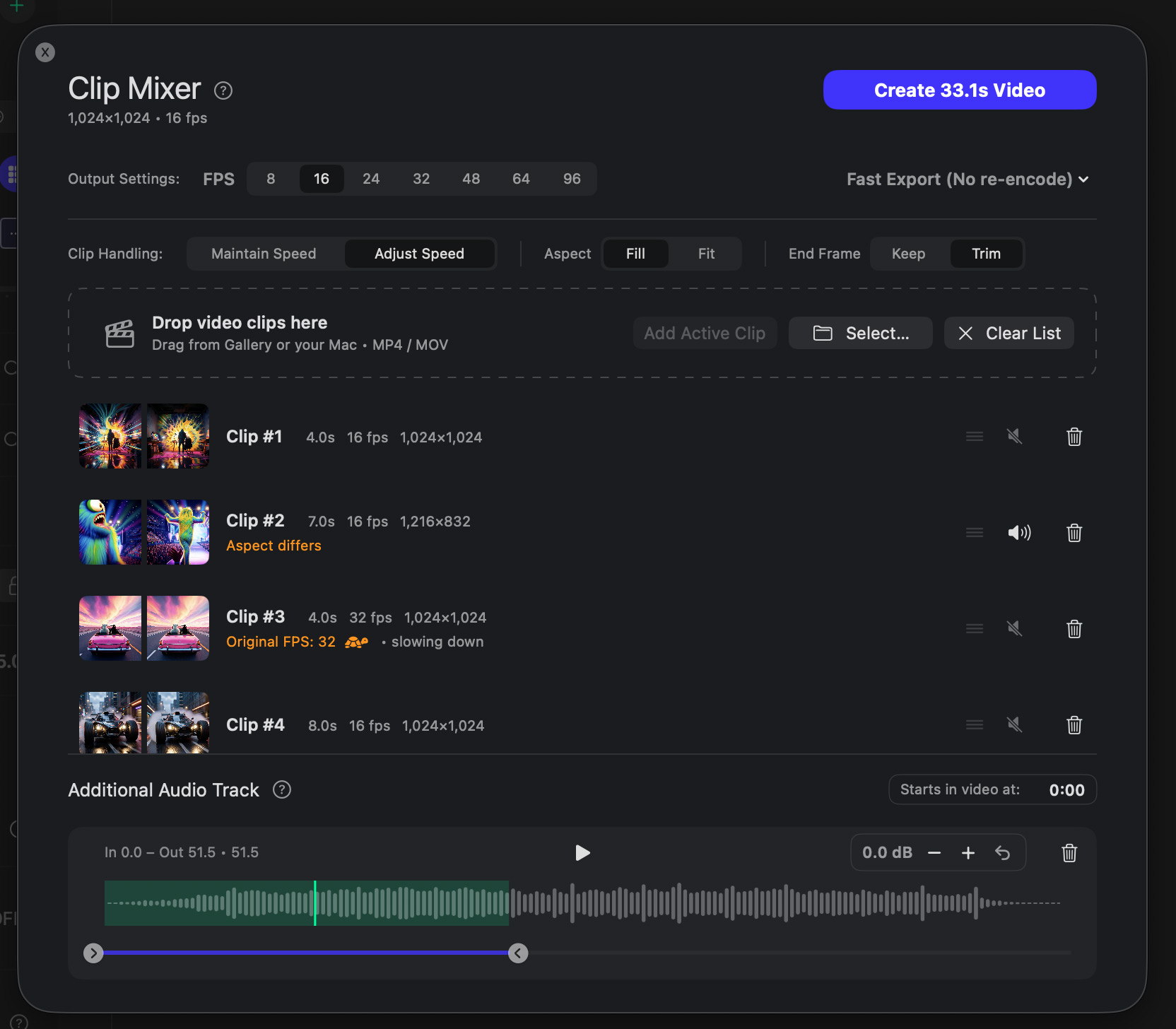
#Adding and Arranging Clips
- Drag video clips in from your Gallery or directly from Finder.
- Reorder clips to define playback order.
- Review transitions between clips, especially if they differ in framing, motion, or duration.
For best continuity, arrange clips so subject position and motion direction flow naturally from one clip to the next.
#FPS (Output Frame Rate)
Sets the frame rate of the final exported video.
If clips have different frame rates, the selected FPS determines how they are aligned during export. This affects smoothness, timing, and how motion is interpreted between clips.
#Combine Mode
Controls how clips are joined together and whether re-encoding occurs.
Fast Combine (No re-encode)
Joins clips instantly without re-encoding.
- Lossless and extremely fast
- All clips must share compatible codecs, resolution, aspect ratio, and FPS
Best when clips were generated with matching settings and you want the quickest possible export.
High Quality (One-pass re-encode)
Re-encodes the full video in a single pass to normalize differences between clips while preserving quality.
- Balances quality, speed, and consistency
- Recommended for most final exports
Share-safe (Full re-encode)
Fully re-encodes each clip for maximum compatibility across players and platforms.
- Most reliable option for sharing
- Takes longer and produces larger files
Use this when clips differ significantly or when targeting platforms with strict playback requirements.
#Handling Mismatched Clips
When clips don’t match exactly, you can control how they are adapted.
FPS Mismatch
Determines how clips with different frame rates are handled.
- Maintain Speed
Preserves the original playback speed of each clip. Frames may be duplicated or dropped to match the target FPS. - Adjust Speed
Retimes clips so frames align naturally with the target FPS. This may slightly speed up or slow down some clips.
Choose Maintain Speed when timing matters.
Choose Adjust Speed for smoother motion consistency.
Aspect Ratio Mismatch
Controls how clips with different aspect ratios fit into the final video.
- Fill
Fills the entire frame by cropping edges if needed. Best for a clean, edge-to-edge look. - Fit
Preserves the full image by adding letterboxing or pillarboxing where necessary.
End Frame
- Trim
Removes the last frame of each clip. Use this when clips extend each other to form a single continuous sequence, preventing a repeated frame at the join. - Keep
Keeps each clip’s end frame. Use this when clips are independent and not meant to flow as a single continuous shot.
#Additional Audio Track
Add a separate audio track to your final video. You can drop an audio file or a video file (audio will be extracted).
Trim the in/out points to choose which part of the audio is used, and adjust the gain. This track plays continuously across all clips and is not affected by clip timing or ordering.
Use Starts in video at to delay when the audio begins on the video timeline.
#Export Tips
- If clips were generated using First & Last Frame continuity, re-encoding usually produces smoother transitions.
- If you see glitches at clip boundaries, switch from Fast Combine to High Quality.
- For social platforms, Share-safe ensures the widest compatibility.
- When in doubt, High Quality is the best default.