
Video Create Mode
Video Create mode is for artists who want more control over timing, motion character, and consistency.
#What it’s for
- Directly generating video with video models
- Getting repeatable results by controlling motion and evolution across frames
- Building clips that you can extend or stitch together
#Workflow
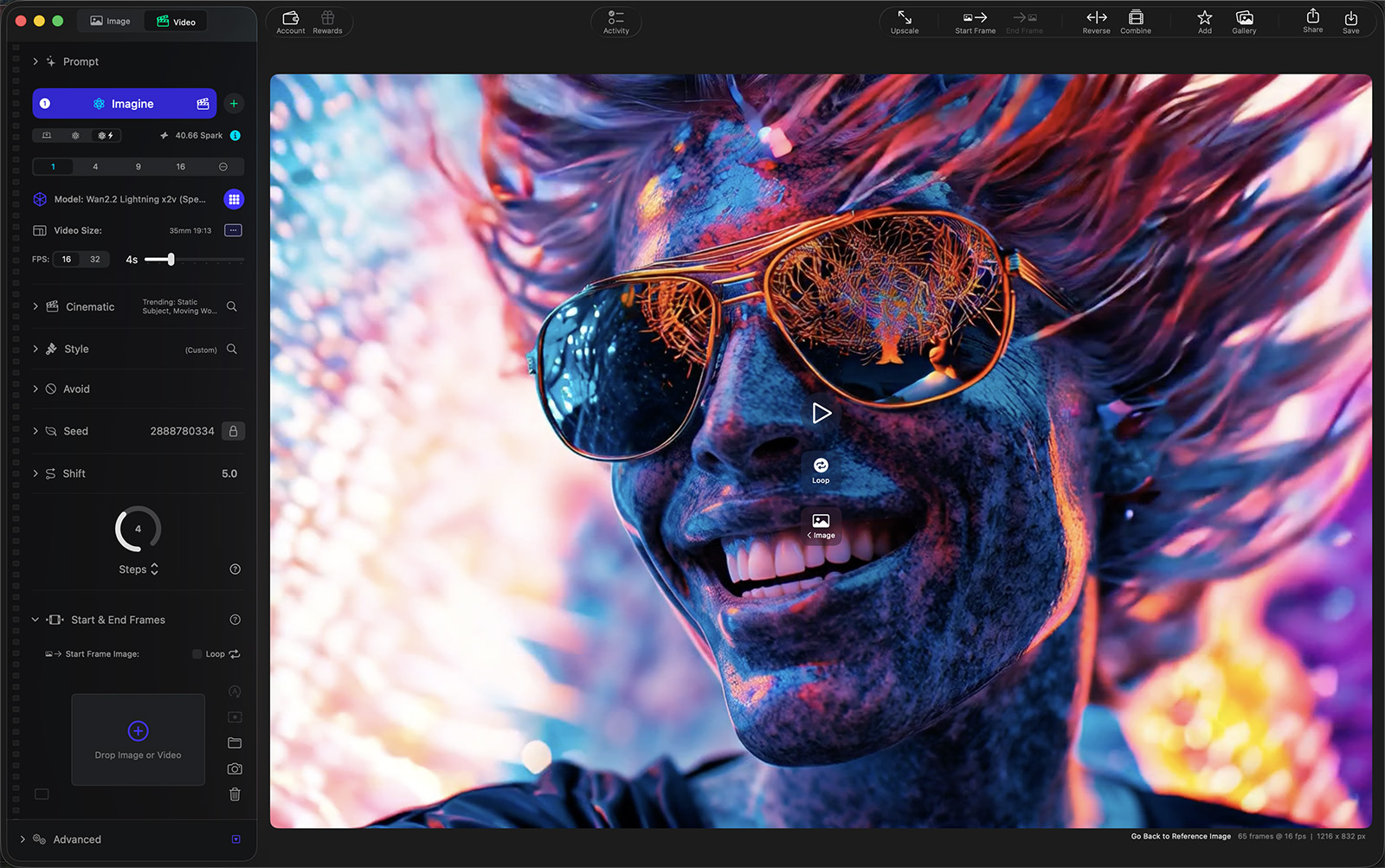
- Switch Create mode to Video.
- Pick a video model / preset.
- Set your video controls (length, FPS, cinematic prompt, etc.).
- Optionally add First & Last Frame references.
- Generate, review, iterate.
Recommended workflow
Start with defaults, then adjust one setting at a time. Small changes can have outsized impact in video.
#Video Controls
These controls are specific to video generation and affect motion, detail, and consistency over time. (Exact names may vary by model.)
#Cinematic Prompt
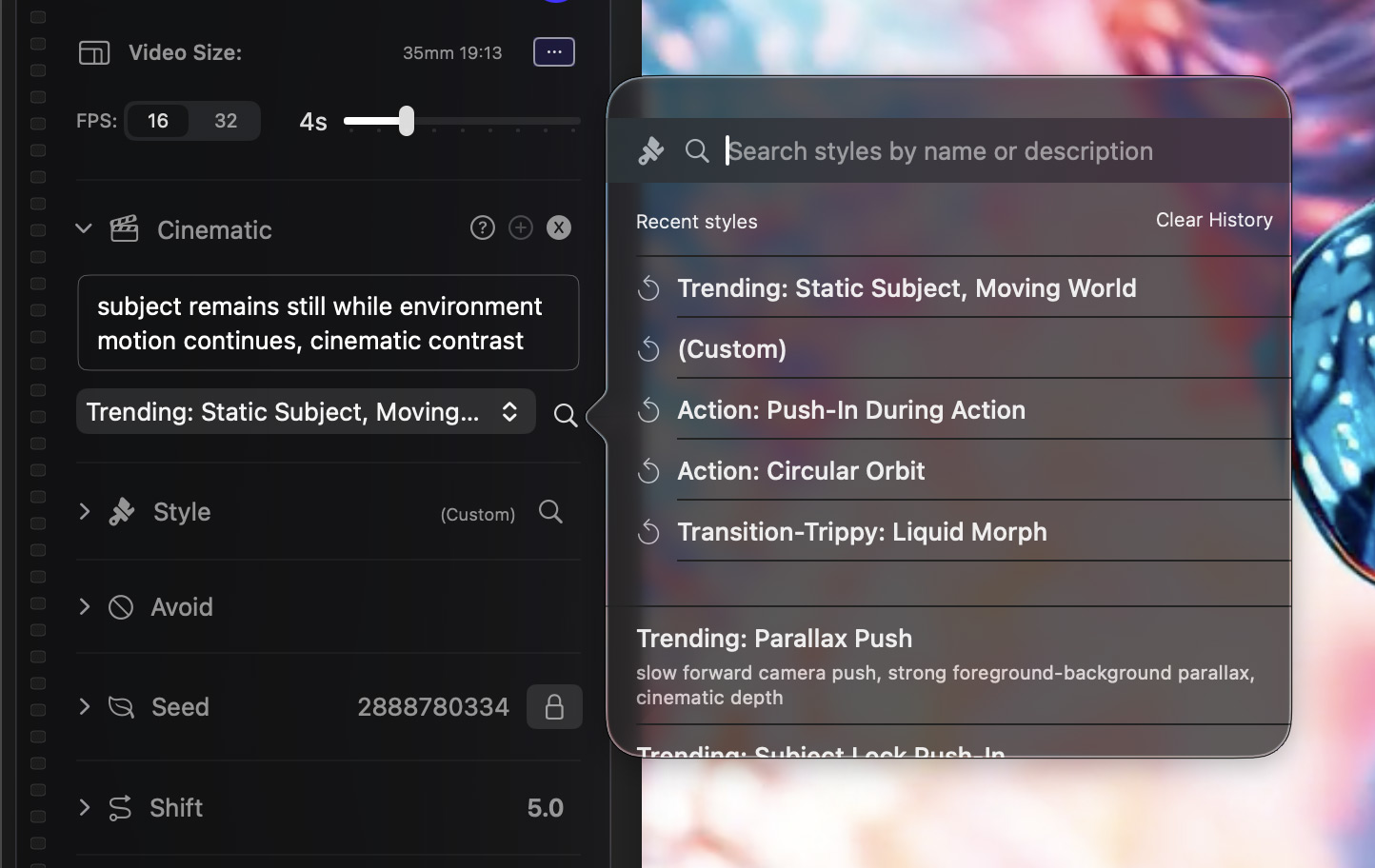
The **Cinematic Prompt** helps guide how your scene moves and unfolds over time. Instead of focusing on what the scene looks like, it adds film-style direction such as camera movement, framing, pacing, and transitions to shape the visual storytelling.
You can use cinematic prompts to influence:
• Camera motion (dolly, pan, zoom, orbit)
• Shot composition and framing
• Scene reveals and scale changes
• Transitions, morphs, and visual continuity
• Overall cinematic mood and rhythm
To make this easy, you can choose from a curated set of cinematic presets, ranging from classic film techniques to more experimental and creative effects. Presets can be used as-is or combined with your own prompt for more control.
Steps
Controls how many refinement iterations each frame gets.
- Higher steps can improve detail and stability
- Higher steps also increase render time and cost
Recommended: Leave at the default unless you’re troubleshooting artifacts or aiming for maximum fidelity.
#Shift
Offsets how motion and detail evolve over time by subtly shifting the model’s internal sampling progression.
- Small changes can affect pacing, emphasis, and how details emerge frame-to-frame
- Larger changes can reduce repetition but may introduce instability
Recommended: Keep the default for most results.
Creative tip: If you see repeating textures or looping “micro motion,” nudge Shift slightly and re-render. Tiny adjustments can break repetition without changing the whole look.
#FPS and length
- Higher FPS can feel smoother but may amplify artifacts if motion isn’t stable
Tip: For social-ready clips, start shorter, then extend using First/Last Frame continuity.