
Enhancing Images
#Image Enhancement
Image Enhancement applies Supernet-powered refinement to an existing image using two tools:
- Creative Enhance — creative, strength-based enhancement (can intentionally change the image)
- Generative Filters — category-based “filters” powered by a next-gen editing/mixing model that keeps the subject consistent
All enhancement options are designed to feel like editing, not re-rolling from scratch: you start from an existing image, choose an enhancement, and get a new improved variant.
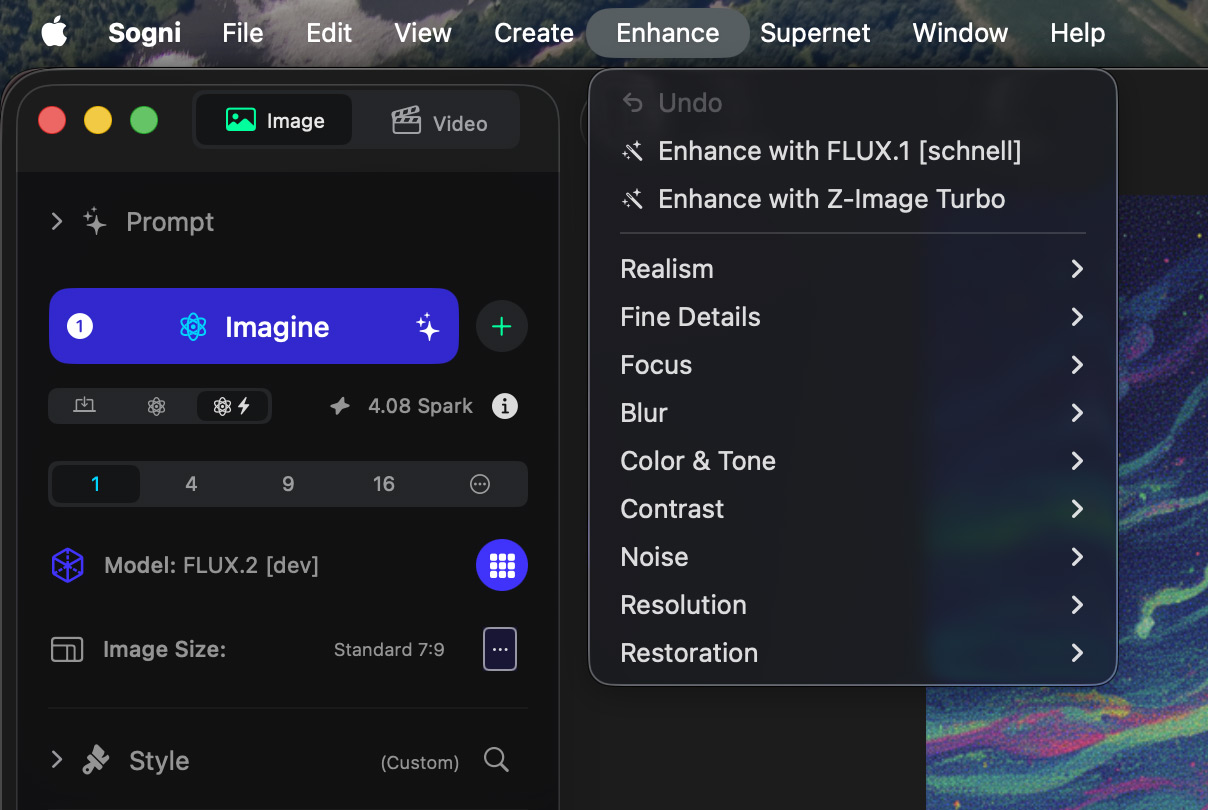
You can access all enhancing options from:
• The Enhance menu within the app's main menu options.
• The Enhance button on the main window's toolbar.
• Right-click on an image.
#Supernet Requirement
All Image Enhancement options run on the Sogni Supernet.
That means they require an active Supernet connection and consume Spark Points.
- Spark cost is shown before you confirm an enhancement.
- Cost varies based on factors like output resolution and the selected enhancement type.
Privacy note: Supernet processing is still privacy-respecting. Media is used only to run the job and deliver the result, then it’s automatically purged after a brief retention period.
#Creative Enhance
Creative Enhance is meant for bigger upgrades and creative refinement. These enhancements can change details, styling, or rendering choices—especially at higher strengths—while still using your current image as the foundation.
Options:
- Enhance with Z-Image Turbo
- Enhance with FLUX.1 [schnell]
#Strength (Light / Mid / Heavy)
Creative Enhance includes a strength control:
- Light: subtle polish, safer changes
- Mid: stronger refinement, more noticeable transformation
- Heavy: maximum enhancement, can introduce larger creative shifts
Use Light when you want the same image, just better.
Use Mid/Heavy when you want to push style, detail, or “final look” more aggressively.
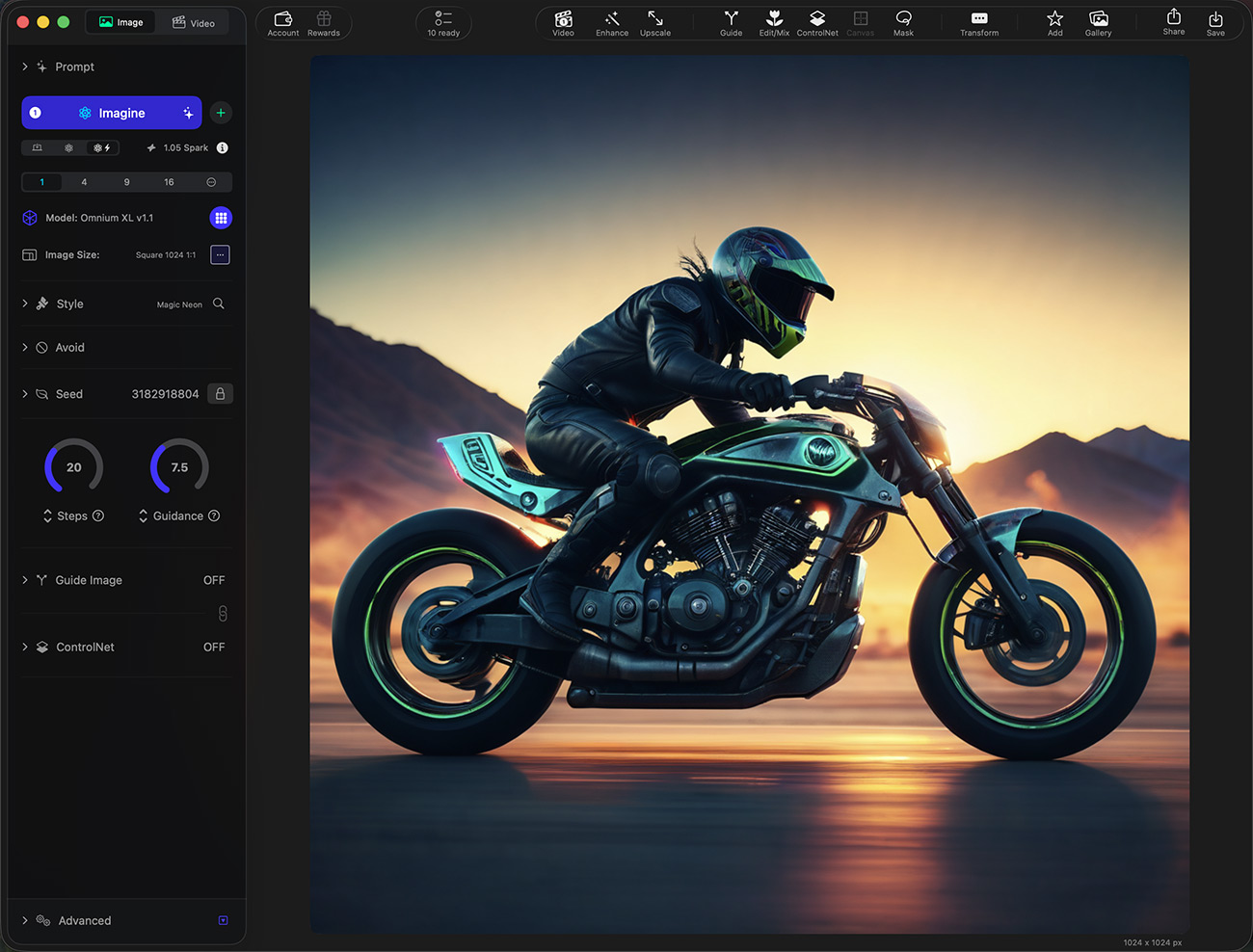
Original Image
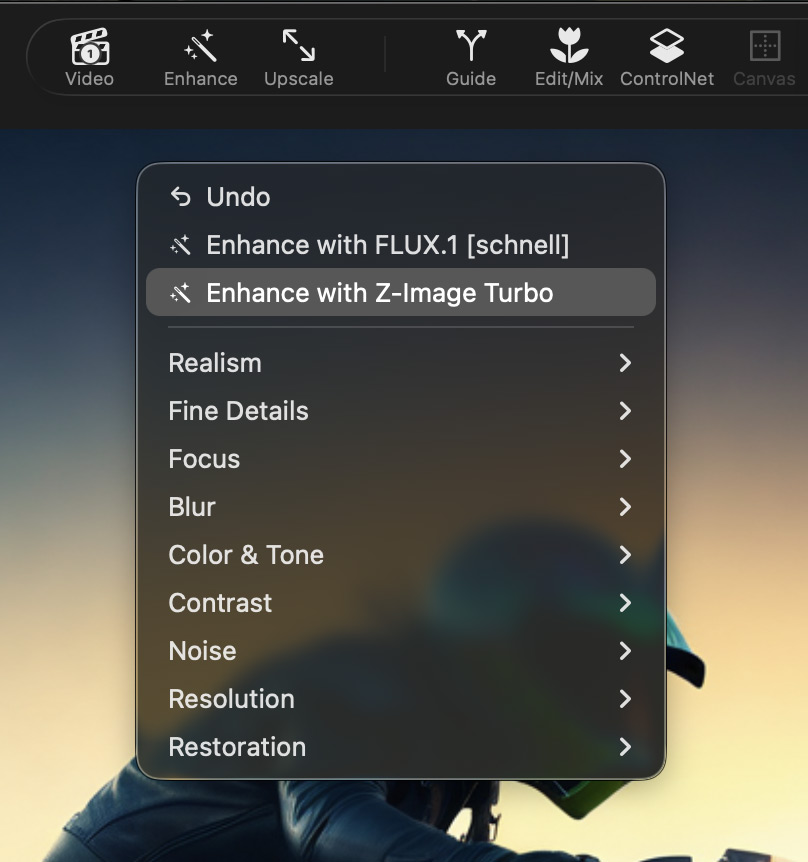
Choose "Enhance with Z-Image Turbo"
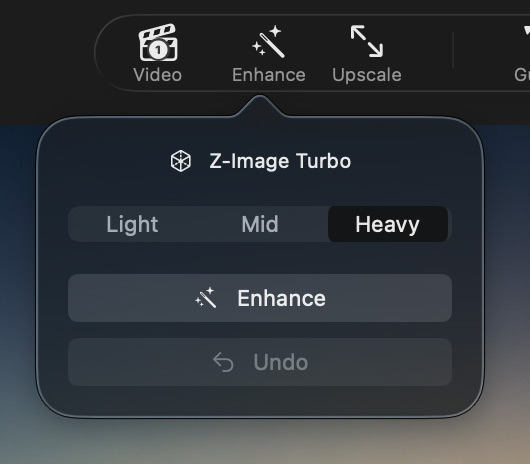
Choose a strength level
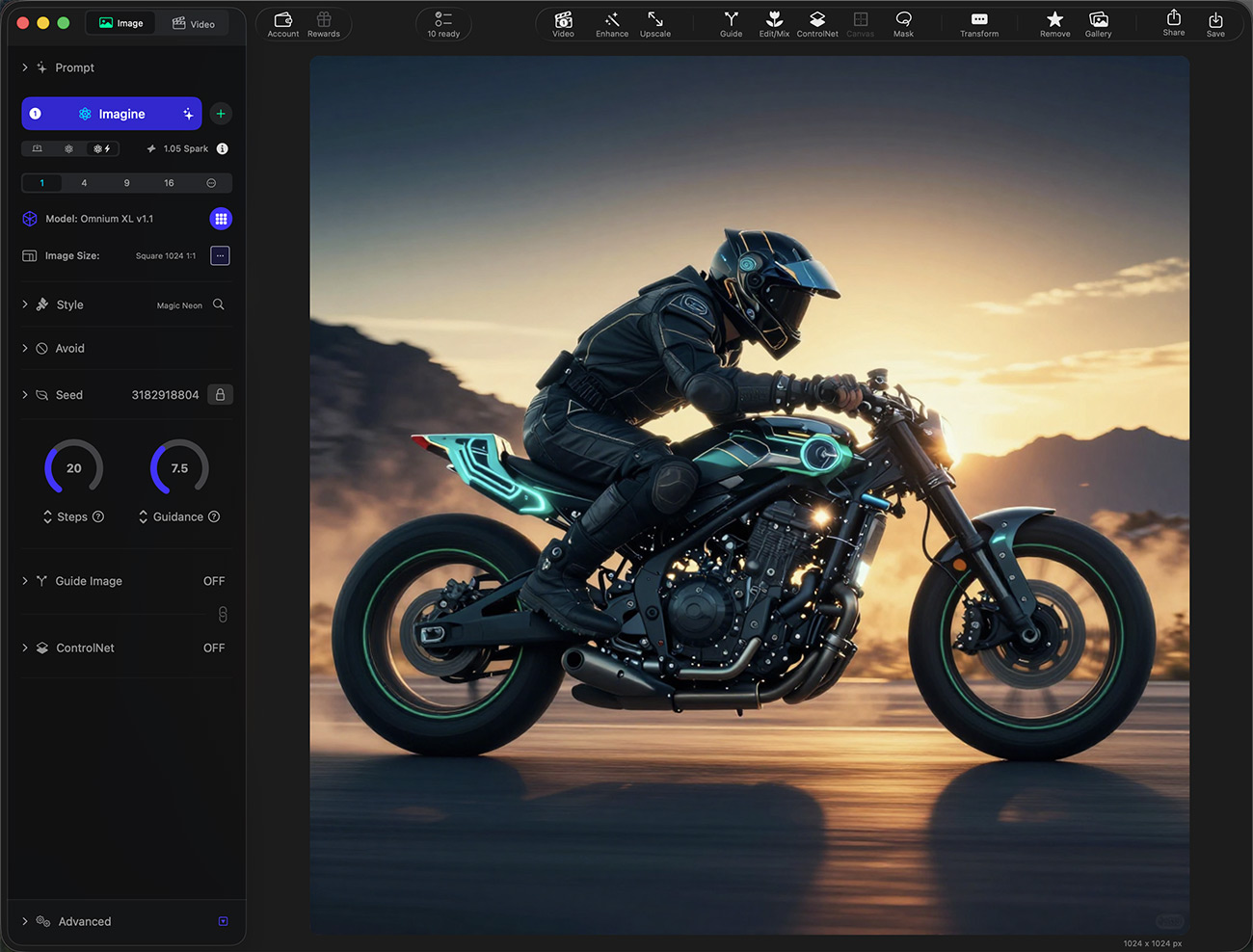
Creative Enhanced Image
#Generative Filters
Generative Filters are “filters,” but they are not traditional post-processing.
They use a next-generation edit/mix model to apply the chosen look while preserving:
- character identity
- scene composition
- overall consistency
This makes them ideal for applying structured changes (realism, tone, detail, restoration, etc.) without losing the subject.
#Categories
Filters are organized into categories for discoverability:
- Realism
- Fine Details
- Focus
- Blur
- Color & Tone
- Contrast
- Noise
- Resolution
- Restoration
Each category contains multiple filter options. You don’t need to learn every filter—think of each category as a family of related transformations.
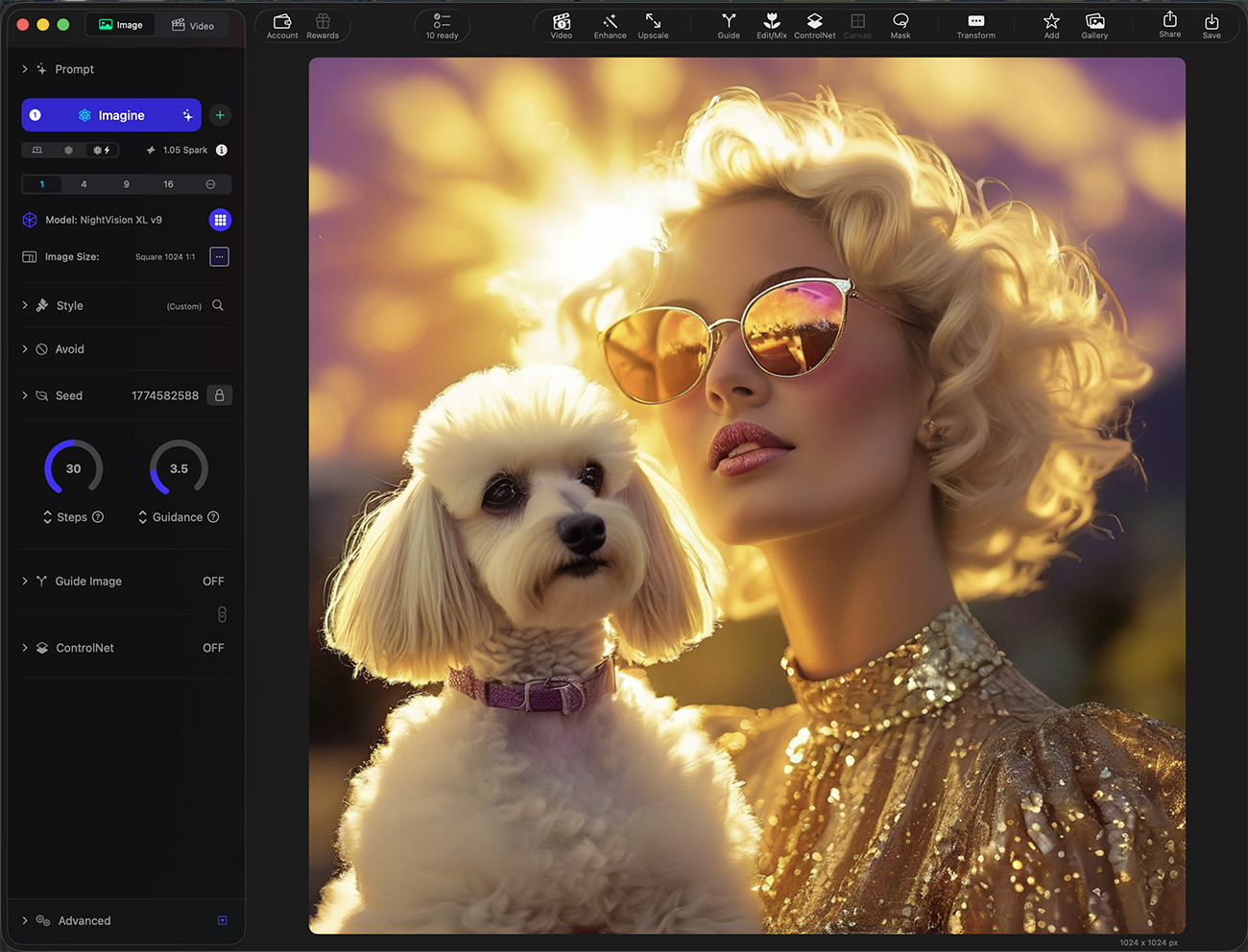
Original Image
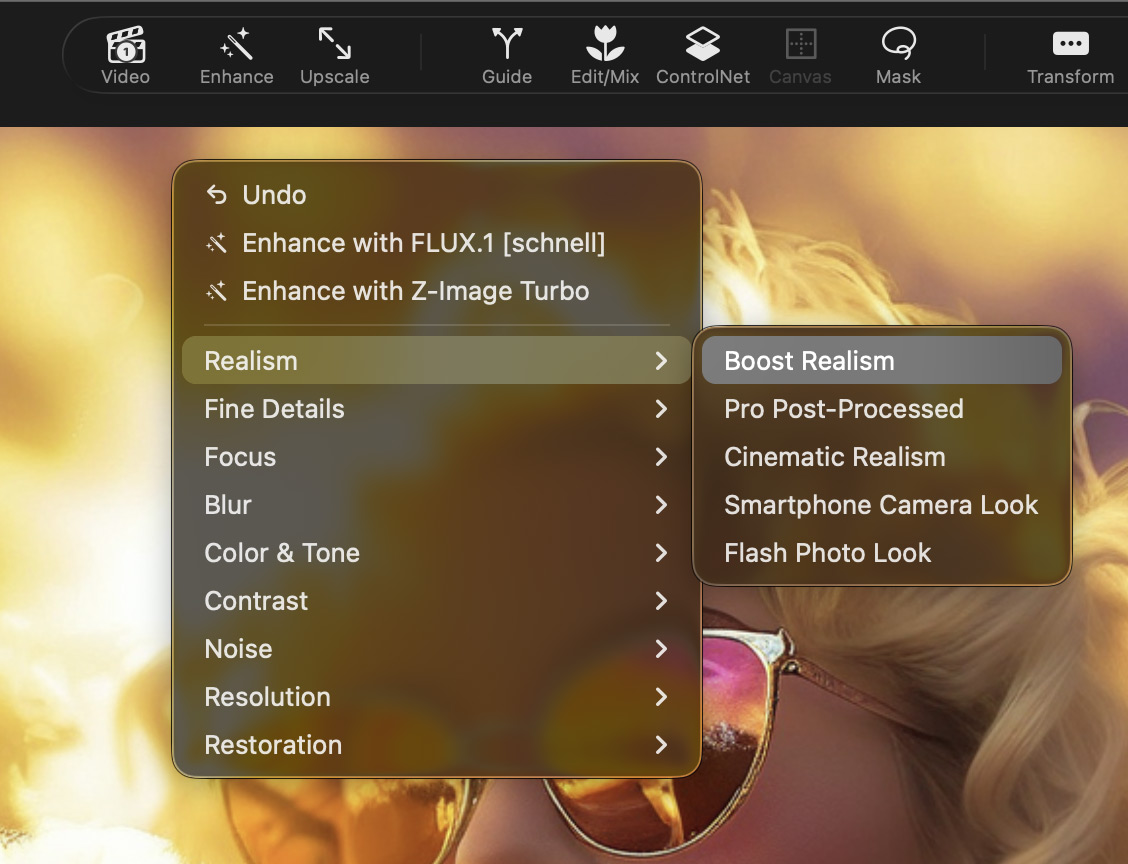
Select a filter to apply
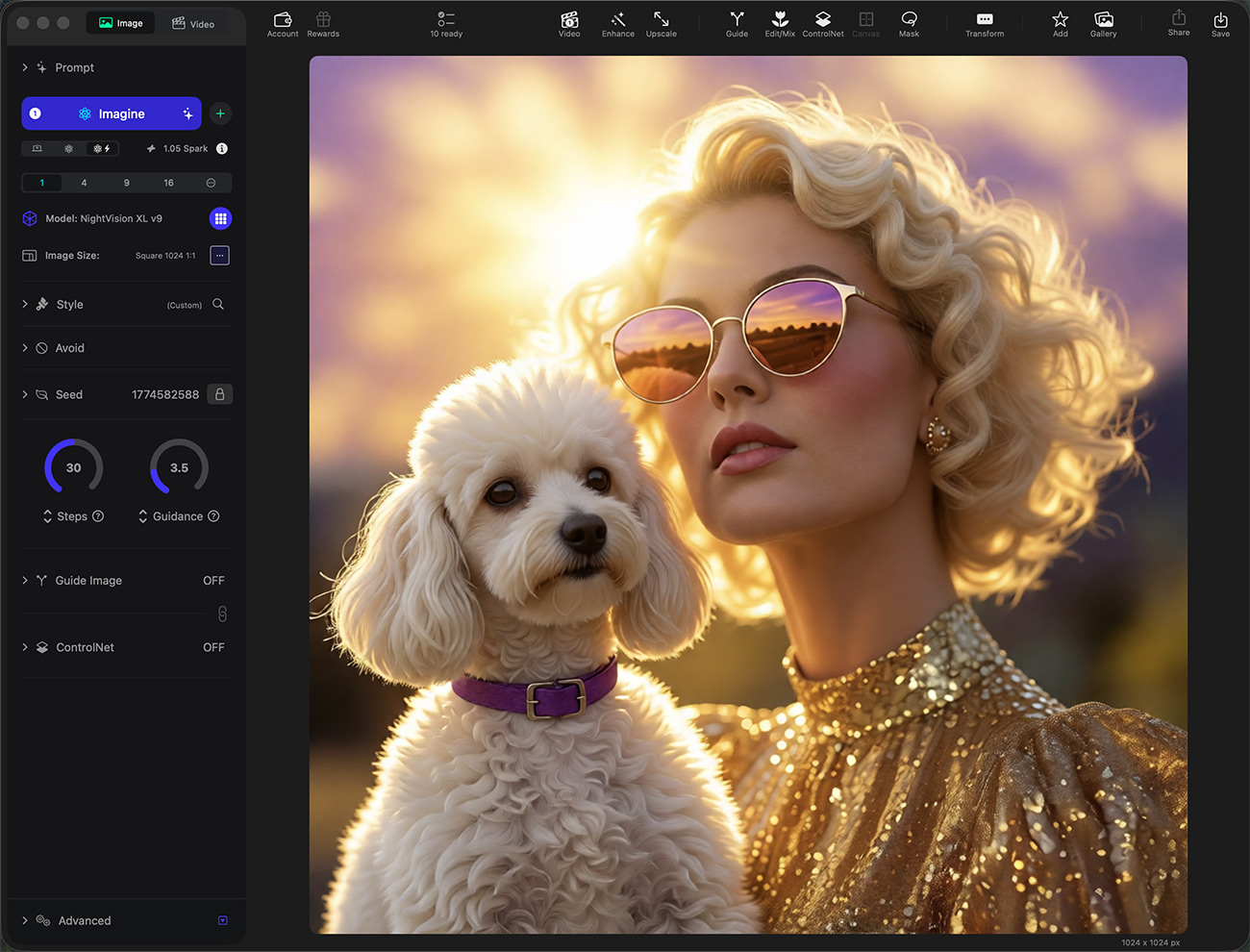
Image with "Boost Realism" filter applied
#When to Use What
Image Enhancement is especially useful when:
- you like the composition, pose, or idea of an image, but it was generated with an older model
- faces, hands, or fine details need repair
- the image feels flat, synthetic, or under-realistic
- you want to modernize an image without re-generating it from scratch
This lets you “bring older images up to date” using newer models, while preserving the original intent and structure.
Use Creative Enhance when:
- you want a stronger upgrade or stylistic push
- you’re okay with some creative change depending on strength
- you want a “final pass” feel
Use Generative Filters when:
- you want targeted adjustments (tone, realism, detail, restoration, etc.)
- you want to preserve character and scene consistency
- you want controlled, repeatable edits
#Tips
- If you’re happy with the composition, start with Generative Filters first.
- If the image feels “almost there,” try Creative Enhance (Light) as a final pass.
- If results drift too far, reduce strength or choose a more targeted filter category.