
Sogni Makeover
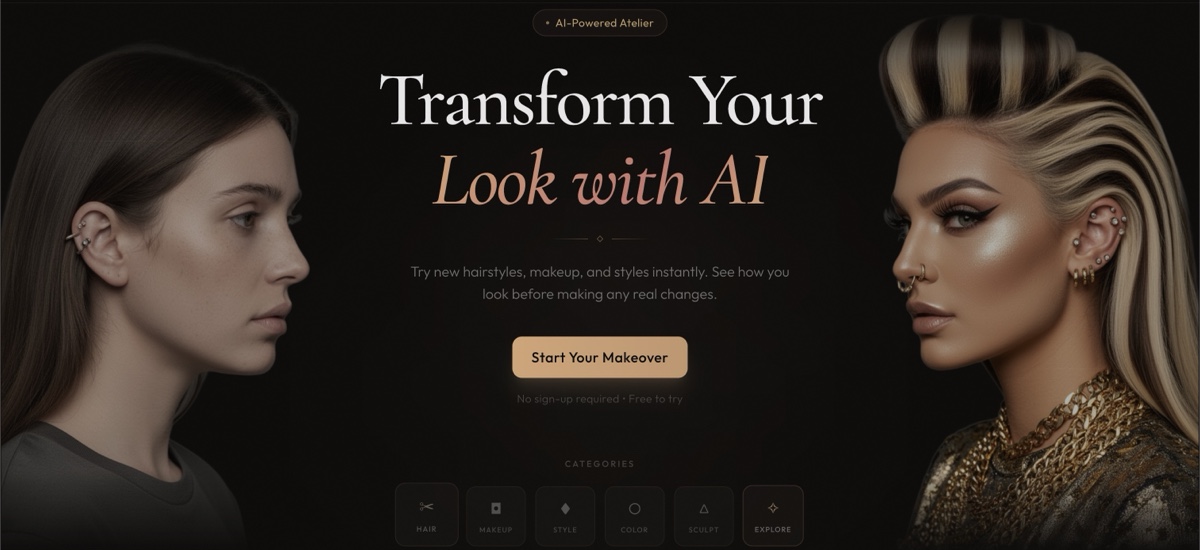
Sogni Makeover lets you preview a new look on your own photo. Upload a selfie or snap one with the camera, pick from 125+ transformation presets across hair, makeup, style, color, and sculpt, and Makeover streams the result back over Server-Sent Events with an interactive before/after slider.
#Launch Sogni Makeover →
#What it does
- 125+ transformation presets across six categories — Hair, Makeup, Style, Color, Sculpt, and Explore.
- Real-time progress. Generations stream back via Server-Sent Events; you watch the result come in instead of waiting on a spinner.
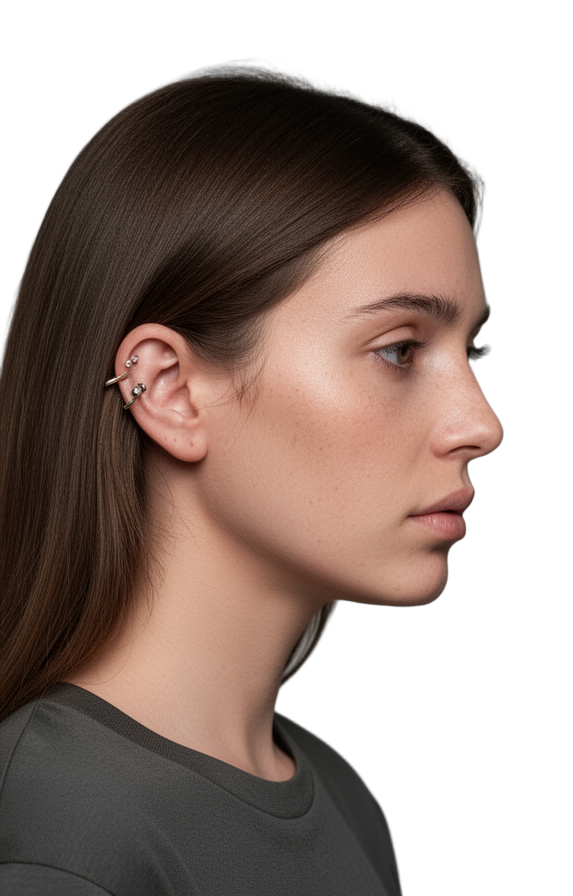
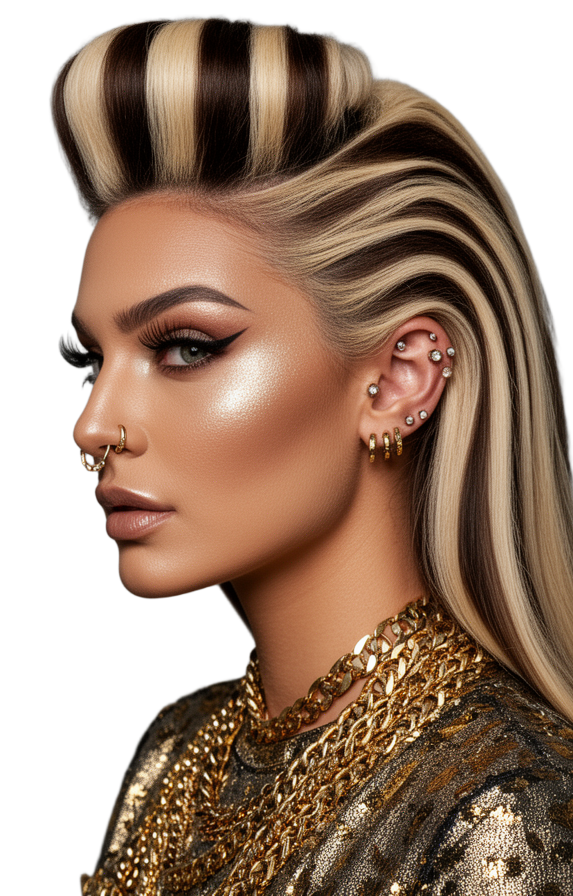
- Before/after slider. Drag to compare the transformation against your original photo on the same canvas.
- Camera capture with auto-enhance. Frame and shoot directly in the app — auto-enhance pushes the input toward headshot quality before the transform runs.
- Transformation history. Browse and revisit every makeover you've generated.
- Installable PWA. Works as a standalone app on mobile and desktop with offline-friendly assets.
- Demo mode. Three free generations with no sign-up — accounts unlock the rest.
#How it's built
The frontend is React 18 + TypeScript + Tailwind with Framer Motion for transitions. Demo users route through an Express backend that keeps Sogni SDK credentials server-side; authenticated users connect directly to the Sogni network through a frontend SDK adapter for lower latency. Generation runs on Qwen Image Edit 2511 via the Sogni Client SDK against the DePIN GPU network.
#Workflows
Try before you cut. Upload a current photo, browse the Hair category, pick three styles, and use the slider to compare each against your starting point before booking the appointment.
Headshot day prep. Run Style or Makeup presets on a clean front-facing shot — auto-enhance handles the input cleanup, and the result is a realistic preview, not a cartoon.
Color exploration. The Color category isolates hair, eye, or makeup color changes so you can test a single variable without restyling everything.
Repeat what worked. History keeps every result; tap an old transformation to reopen it and run a new variation from the same base photo.
#Tips for best results
- Use a front-facing photo with even lighting. Side-angle and heavy shadow shots are harder for the model to preserve identity through.
- One face per photo. Group shots and crops where another face is partially visible can confuse the transform.
- Try a preset first, customize after. The presets are tuned; start there before writing a custom prompt.
- Slider, not new tab. Drag the before/after slider over the same area to spot small changes you'd miss with two side-by-side images.