
Sogni Restore for Web and Android
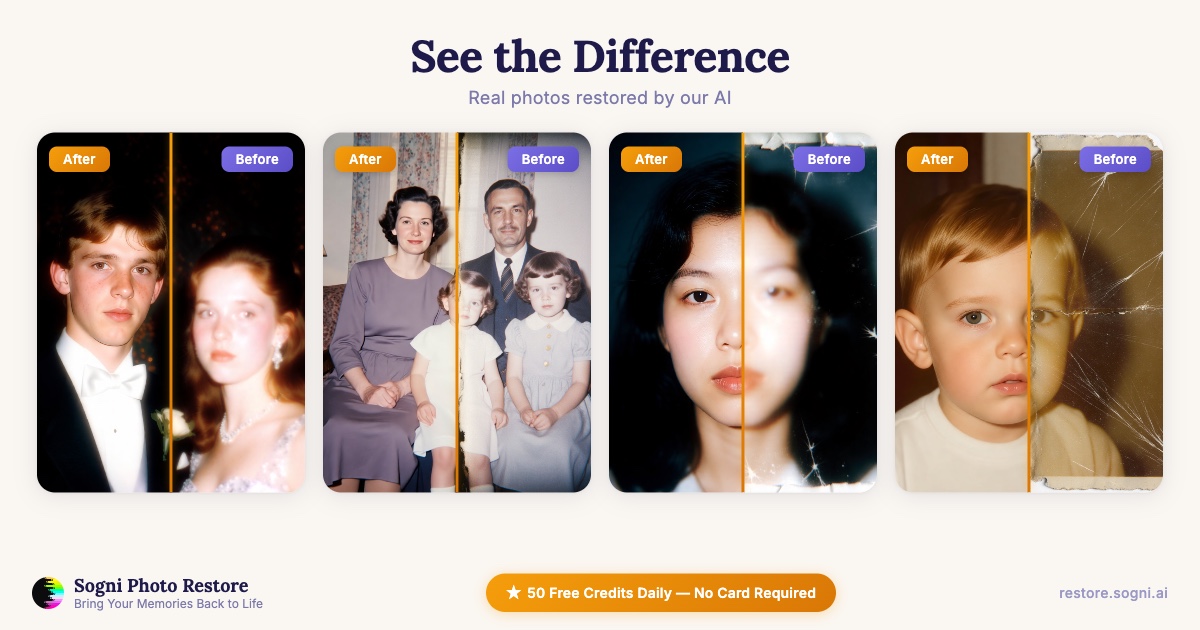
Sogni Restore brings old, damaged, and faded photos back to life in the browser or as an Android app from Google Play. Upload a scan, pick a restoration preset, and the Sogni Supernet returns four cleaned-up variations to choose from — no GPU or model downloads. The Android app installs the same Restore experience available at restore.sogni.ai.
#Launch Restore →
#Get Sogni Restore on Google Play →
#What it does
- AI photo restoration that repairs scratches, tears, creases, stains, and emulsion damage while preserving the subject's identity.
- Four variations per generation so you can compare interpretations and pick the most faithful result instead of being stuck with one output.
- Before/after slider on every result for side-by-side comparison.
- Image-to-video on any restored frame — turn a still portrait into a short animated clip.
- Local-first storage via IndexedDB, so your project history, favorites, and recent restorations live in your browser even before you sign in.
- Batch processing for digitization projects — drop in a folder of scans and work through them without losing place.
- Web and Android access through the installable PWA or the Google Play app, including offline access to your local project history.
Sogni Restore is built on the Sogni Client SDK.
#Restoration presets
Four presets cover the common failure modes of old photos, each available at two quality tiers.
| Preset | Use when |
|---|---|
| Gentle Restore | The photo is mostly intact and only needs minor cleanup of spots and scratches. |
| Deep Clean | Severe physical damage — tears, heavy scratches, water stains, missing emulsion. |
| Color Revival | Faded prints with washed-out or shifted color that need their palette brought back. |
| Full Remaster | End-to-end restoration with sharpening, color, and detail recovery for the strongest result. |
Fast mode runs Qwen Image Edit Lightning for quick exploration; High Quality mode runs the full Qwen Image Edit pipeline when the result is the keeper.
#Workflows
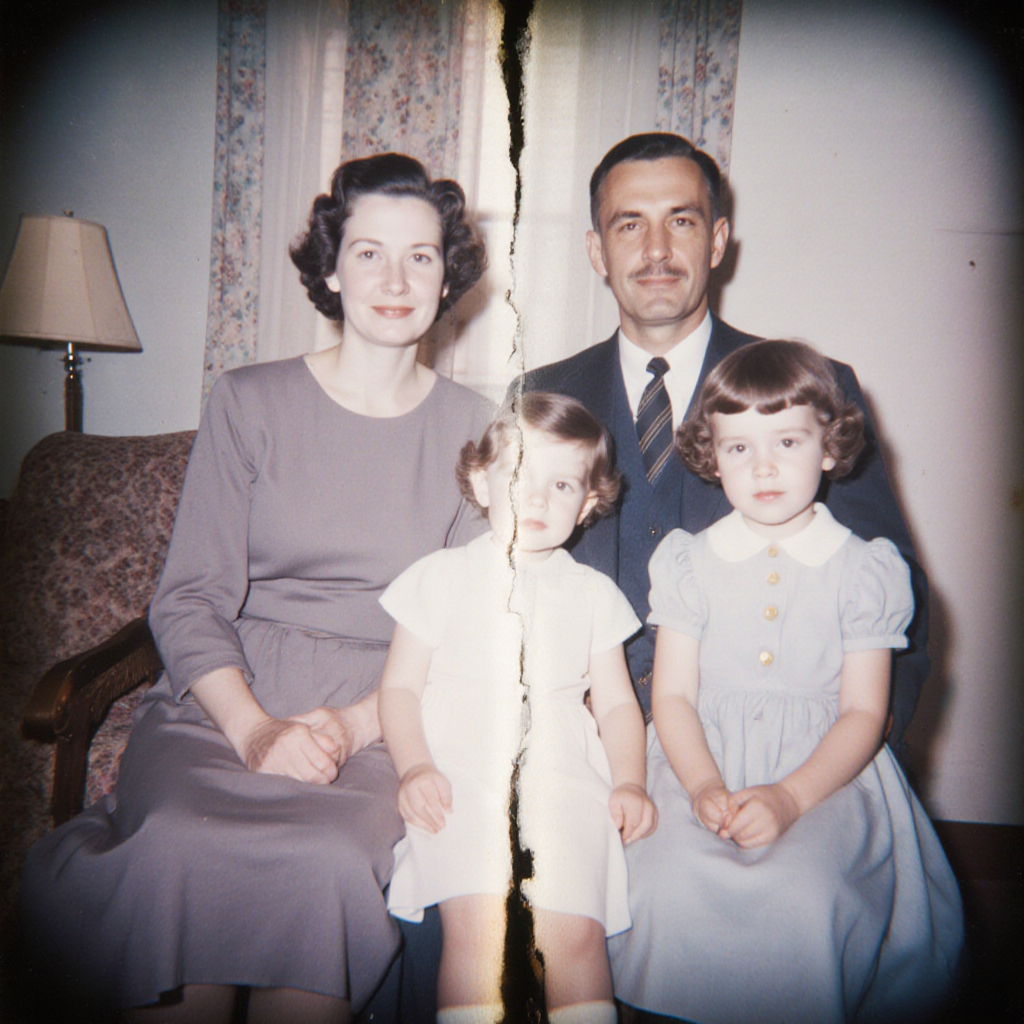
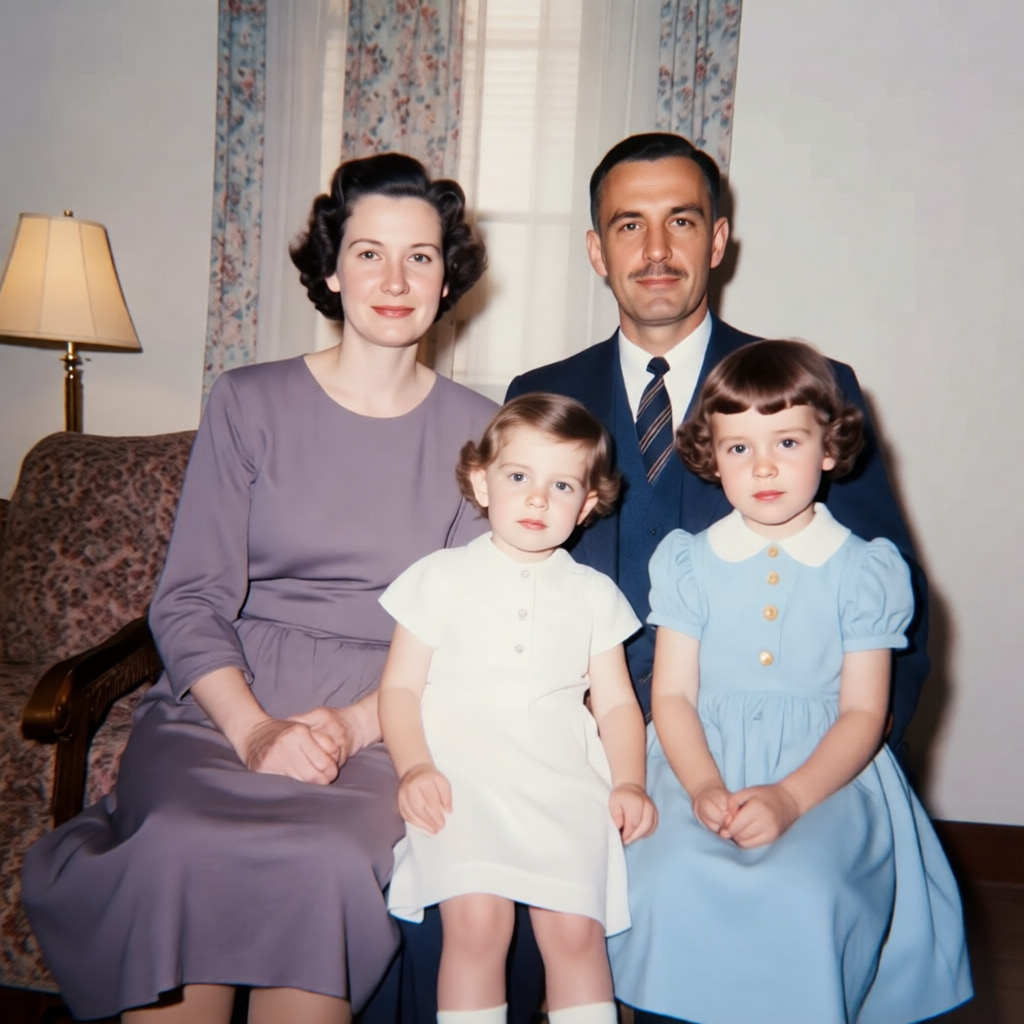
Single damaged photo. Scan at the highest resolution your scanner supports, upload, run Full Remaster on Fast, pick the best of four variations, then re-run that one on High Quality for the final.
Family archive digitization. Batch upload scans, run Gentle Restore on Fast across the whole set, then revisit each result and decide which need a deeper pass.
Faded color prints. Color Revival recovers shifted reds, yellowed paper, and washed-out blues without over-saturating skin tones.
Restored portrait, animated. Pick a clean restored portrait and send it to Image-to-Video for a short clip — useful for memorial slideshows or social posts.
#Tips for best results
- Scan, don't photograph. Flatbed scans at 600 DPI give the model far more to work with than a phone photo of a print.
- Start gentle. Try Gentle Restore first; only escalate to Deep Clean or Full Remaster if the result leaves damage behind.
- Pick from the batch. The four variations interpret the damage differently — the "best" one is rarely the first.
- Favorite as you go. The local-first storage keeps everything in your browser; favorite winners so they're easy to find later.
- High Quality for the final. Burn batches in Fast to find the right preset, then re-run the winner on High Quality.