
Cancel an Apple Subscription and Request a Refund
If you purchased a monthly Sogni Unlimited or Unlimited Pro subscription through the Apple App Store, Apple manages your billing. To stop renewing and ask for your payment back, complete both steps:
- Cancel your Apple subscription to stop future renewal charges.
- Request a refund from Apple for the subscription payment.
Canceling does not automatically request a refund. Sogni support cannot issue refunds for Apple-billed purchases on your behalf. Apple reviews your request and decides whether it qualifies.
These steps also apply to annual subscriptions billed by Apple. If you purchased on the Sogni website through Stripe, contact [email protected] for a refund review and use the web cancellation guide to stop renewal.
#Cancel your Apple subscription
From the Sogni iOS app: Open your subscription screen and tap Manage on your active plan to open Apple's subscription management. Select Sogni if Apple shows a list of subscriptions, then tap Cancel Subscription and follow the confirmation prompts.
From iPhone or iPad Settings:
- Open Settings and tap your name at the top.
- Tap Subscriptions.
- Select Sogni: AI Image, Video & Music (the name may be shortened in the list).
- Tap Cancel Subscription and confirm.
If Apple shows no cancellation button or displays an expiration message in red, the subscription is already canceled. See Apple's cancellation instructions.
For a paid monthly subscription, cancellation stops renewal and you keep access until the end date Apple shows. An approved refund may end access earlier. Uninstalling Sogni does not cancel your subscription.
See the Manage and Cancel Subscription screens
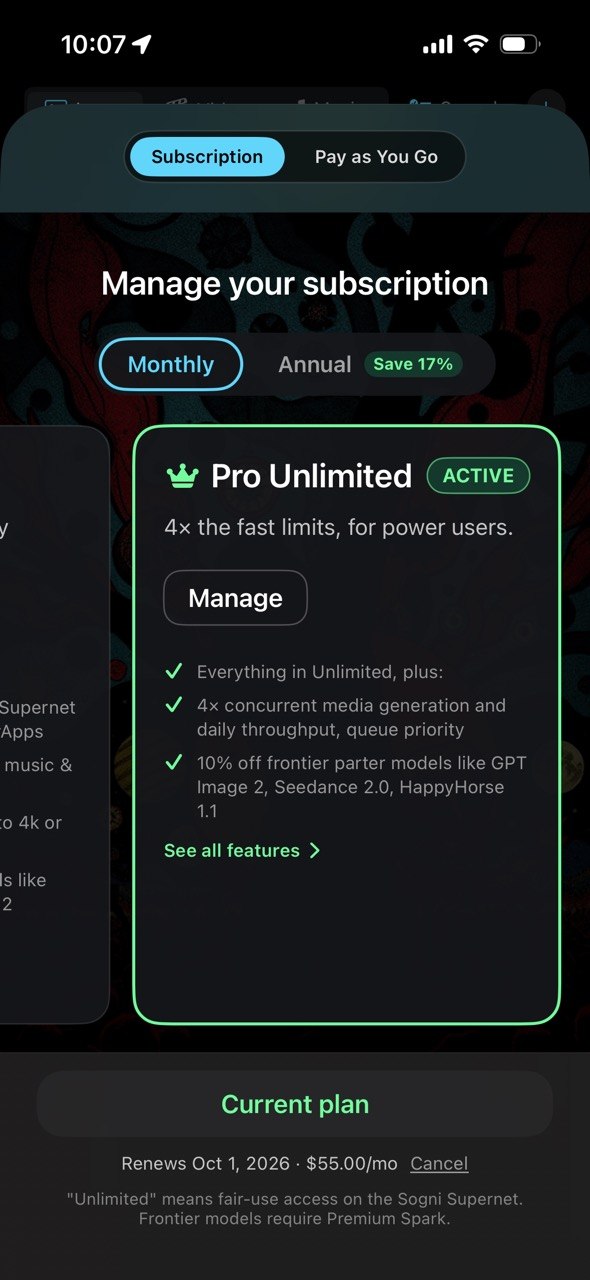
Tap Manage on your active plan in Sogni. Tap the screenshot to view it at full size.
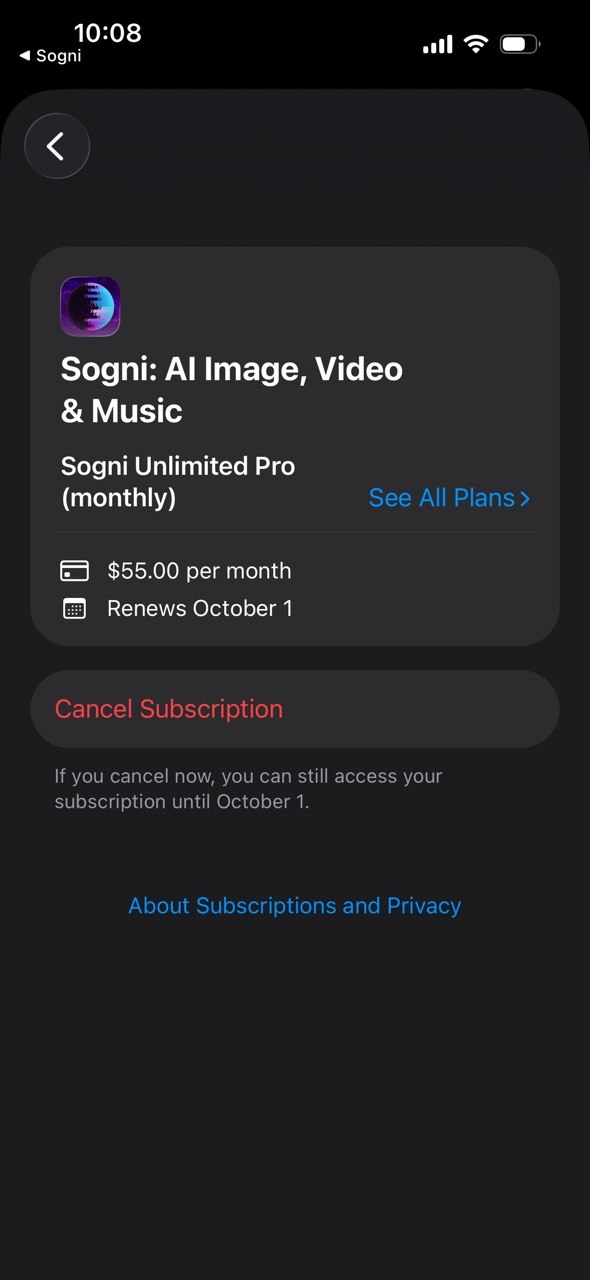
Apple's subscription details show Cancel Subscription and your access end date. Prices and dates shown here are examples.
#Request a refund from Apple
Submit the request on Apple's website; the Cancel Subscription button in Settings only cancels renewal.
- Open Apple's Report a Problem website and sign in with the Apple Account used for the purchase.
- In I'd like to, select Request a refund.
- Select the reason for your request, then Next.
- Select the Sogni subscription charge you want reviewed, then Submit.
Apple determines refund eligibility; submitting a request does not guarantee approval. See Apple's refund instructions.
#Check your refund status
Allow 24–48 hours for an update from Apple. Return to Report a Problem, select Check Status of Claims, then Pending to view your request.
If approved, the money may take additional time to reach your original payment method. See Apple's refund status and payment timelines.
#If you cannot find the charge or submit a request
- Check the account: Find your Apple email receipt and sign in with the Apple Account listed on it. This may differ from the email you use for Sogni.
- Pending charge: Wait until Apple sends the receipt, then try again.
- Still unable to request a refund: Contact Apple Support.
For the full purchase terms, see Sogni's Cancellation, Refund, and Generation Credit Policy.