
Sogni Restore for iOS
Sogni Restore for iOS is the native counterpart to the web app, built in SwiftUI for iOS 17.6 and up. It runs the same restoration presets against the Sogni Supernet, then adds a set of video tools that take a restored photo further — orbit clips, panoramas, and montages stitched from mixed-source footage and audio.
#Get it on the App Store →

#What it does
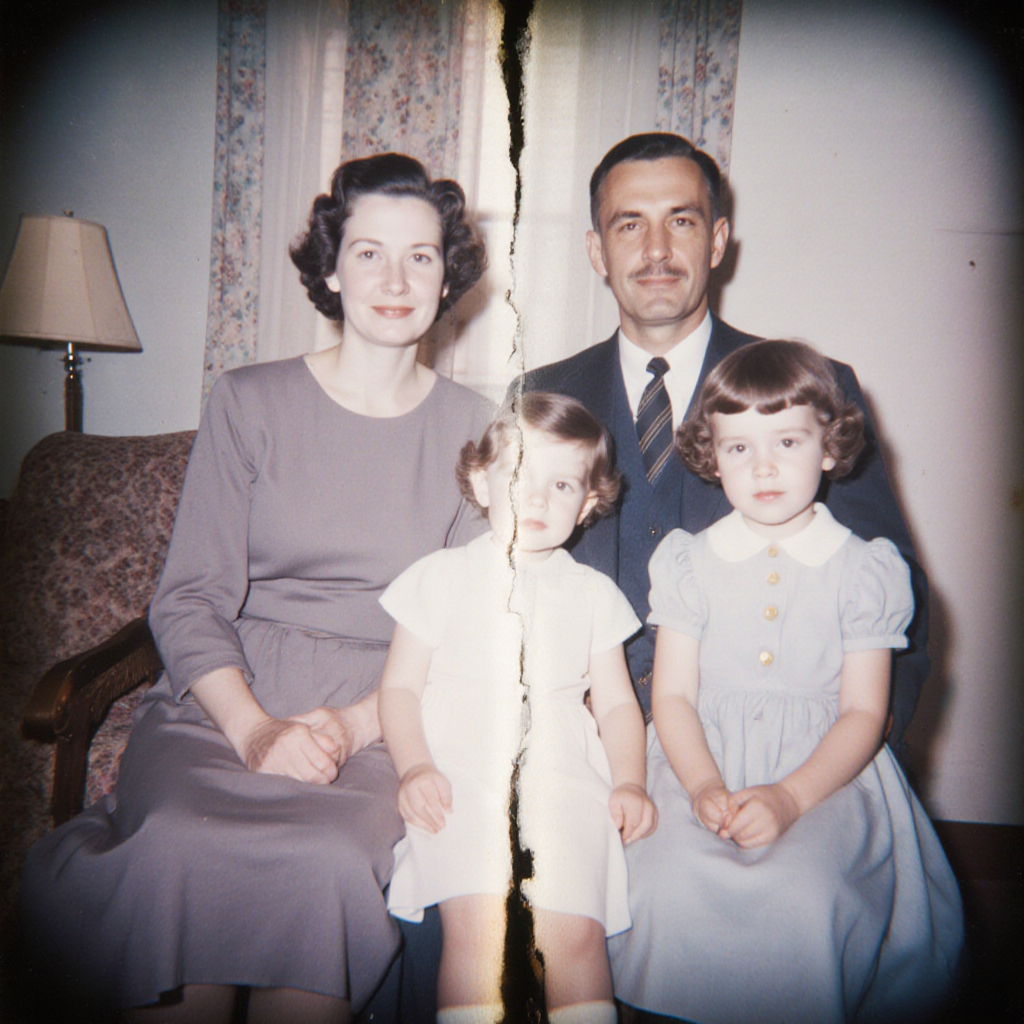
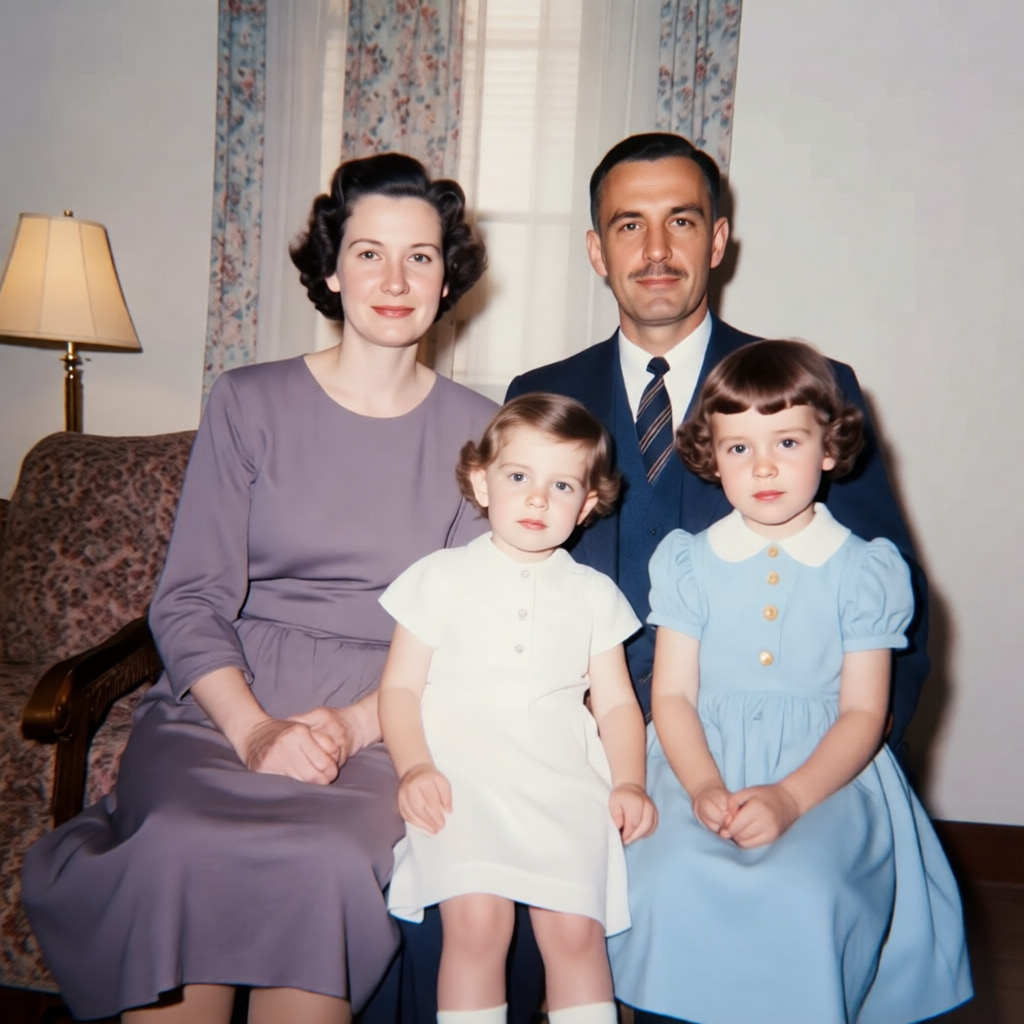
- Photo restoration using the same four presets as the web app, with two quality tiers per preset.
- Batch processing — pick up to 20 photos from your library, camera, or Files and enhance them in one tap.
- Image-to-video that animates any restored frame into a short clip.
- Orbit and panorama video — generate multi-angle stitched clips from a single still, useful for portraits and product shots.
- Video montage that stitches multiple clips and stills into one MP4 with mixed-dimension frame fitting and mixed-source audio preservation.
- Restore Assistant — a chat-based editing assistant with vision and tool calling that can run multi-step workflows like "restore these photos then animate them."
- Project organization with SwiftData persistence, original/enhanced split views, and a comparison slider for before/after.
#Restoration presets
The same four presets as the web app, tuned for native batch import from your photo library.
| Preset | Use when |
|---|---|
| Gentle Restore | Minor cleanup — spots, dust, light scratches. |
| Deep Clean | Heavy physical damage — tears, creases, water stains. |
| Color Revival | Faded or color-shifted prints that need their palette back. |
| Full Remaster | End-to-end restoration with sharpening and detail recovery. |
Lightning mode runs five inference steps for quick passes across a batch; Full mode runs the high-step pipeline for the final keeper.
#What the iOS app adds over web
The native build is where Restore's video tools live. The web app handles single image-to-video clips; iOS adds the longer-form pieces.
- Orbit / panorama video generates multi-angle camera moves from a single restored still — the kind of shot that normally needs a turntable or a real camera rig.
- Video montage combines clips, stills, and audio of different dimensions and rates into a single MP4 without manual editing. Mixed-source audio is preserved across cuts.
- Restore Assistant is the chat surface that ties it together — describe what you want in natural language and it routes restoration, animation, and montage tools in sequence.
- Native performance — SwiftUI with
@Observable, paginated grids,NSCache-backed thumbnails, and fire-and-forget job submission keep large libraries responsive.
#Workflows
Restore a shoebox of old prints. Import a batch from Photo Library, run Gentle Restore on Lightning, review in the original/enhanced split view, favorite the winners, and re-run those on Full.
Animate a portrait. Restore a single portrait, send it to image-to-video, then to orbit video for a slow camera move.
Memorial montage. Restore a set of family photos, animate the best ones, then drop everything into Video Montage with a single audio track — the app handles mixed dimensions and preserves audio across cuts.
Hands-free editing. Open Restore Assistant, describe the project ("clean up these scans then make a panorama video"), and the chat agent runs the tools in order with live progress.
#Tips for best results
- Import at full resolution. The picker grabs originals from your library — don't pre-shrink in Photos first.
- Start with Lightning. A batch at Lightning gives you a fast preview of what each preset is doing; re-run keepers at Full.
- Use the original/enhanced split. It's the fastest way to spot results that drifted too far from the source.
- Pre-flight balance. The app checks Spark balance before submitting batch jobs, so you'll know up front if a large set won't finish.
- Let the assistant chain steps. Multi-step prompts ("restore then animate then montage") are what the chat agent is for.