Signing Up
These instructions are outlined for the native Mac version of Sogni Studio but also apply for Sogni Pocket (iOS) and the web version at app.sogni.ai
When opening a Sogni app for the first time, you'll be prompted to Login or Create an account. Accounts are mandatory for both Artist and Worker modes when using or powering the Sogni Supernet.
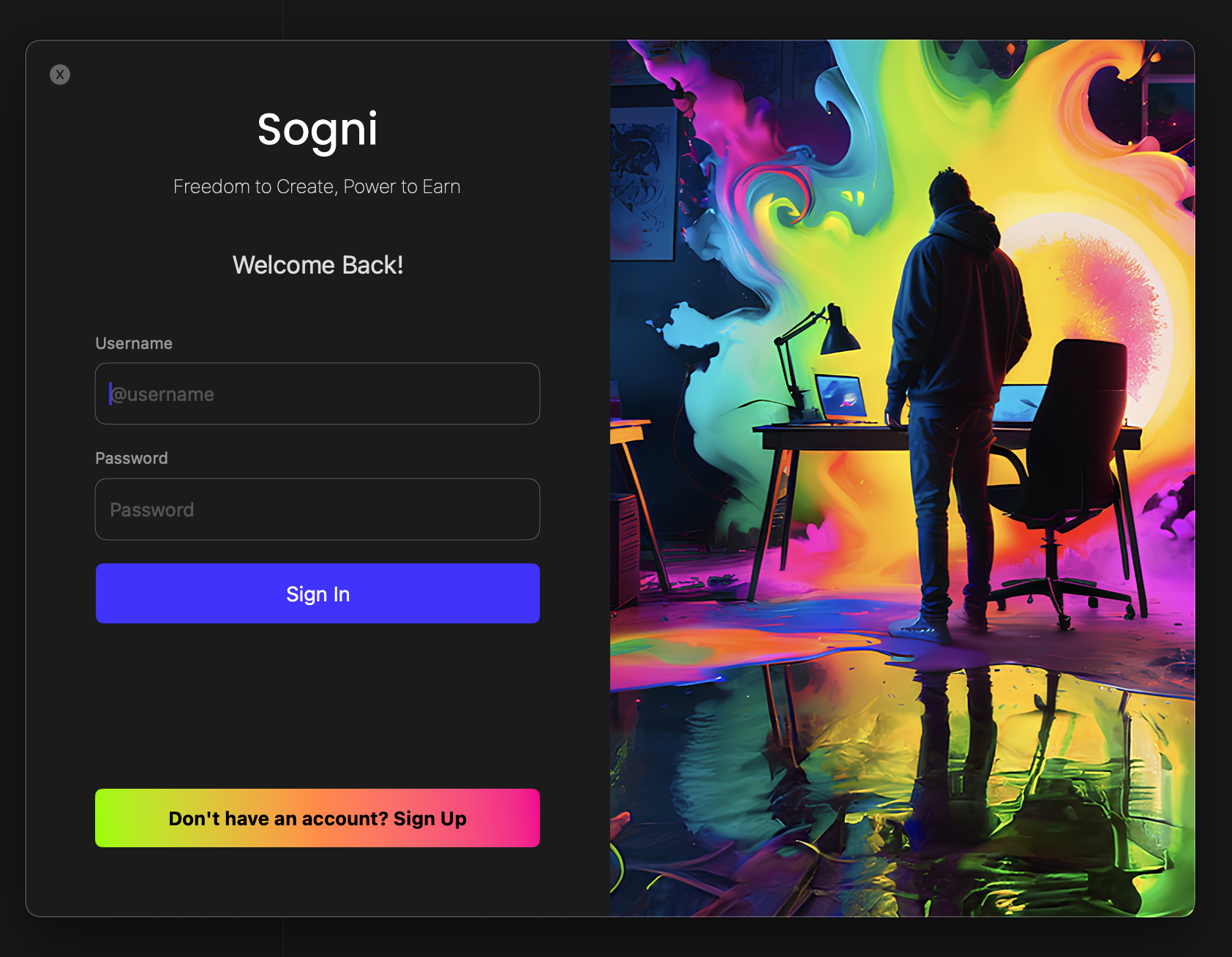
Welcome view within Sogni Studio for MacOS
#Create Username Handle
For new users, select the "Don't have an account? Sign Up" button to begin creating your new account.
Enter the username you'd like to use, provide your email address and hit the Continue button.
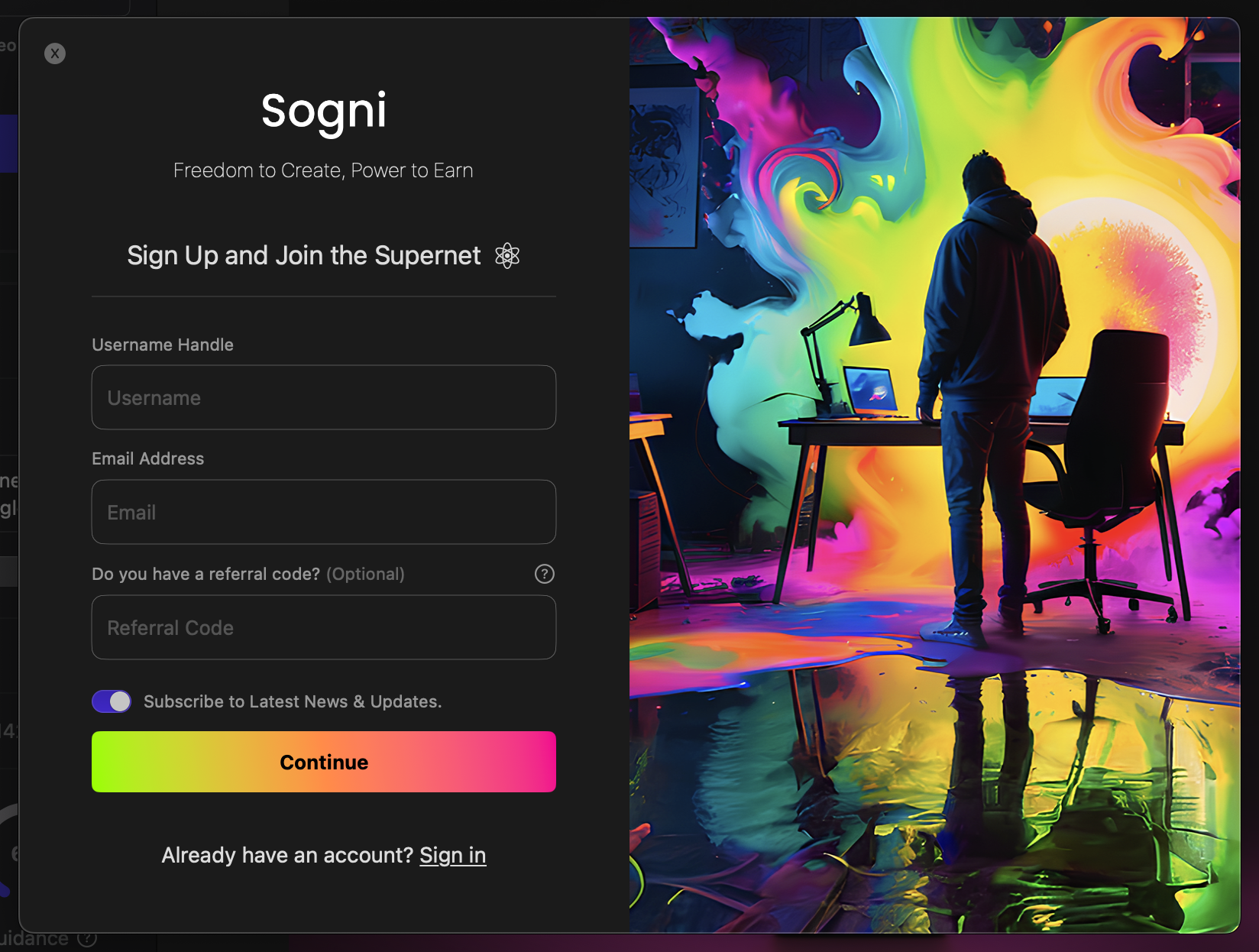
Create Your Account
#Create Secure Password
Enter a secure password or opt to use the suggested Strong Password.
If you forget or lose your password, we have no way of recovering this password or resetting it. We highly recommend backing up your password.
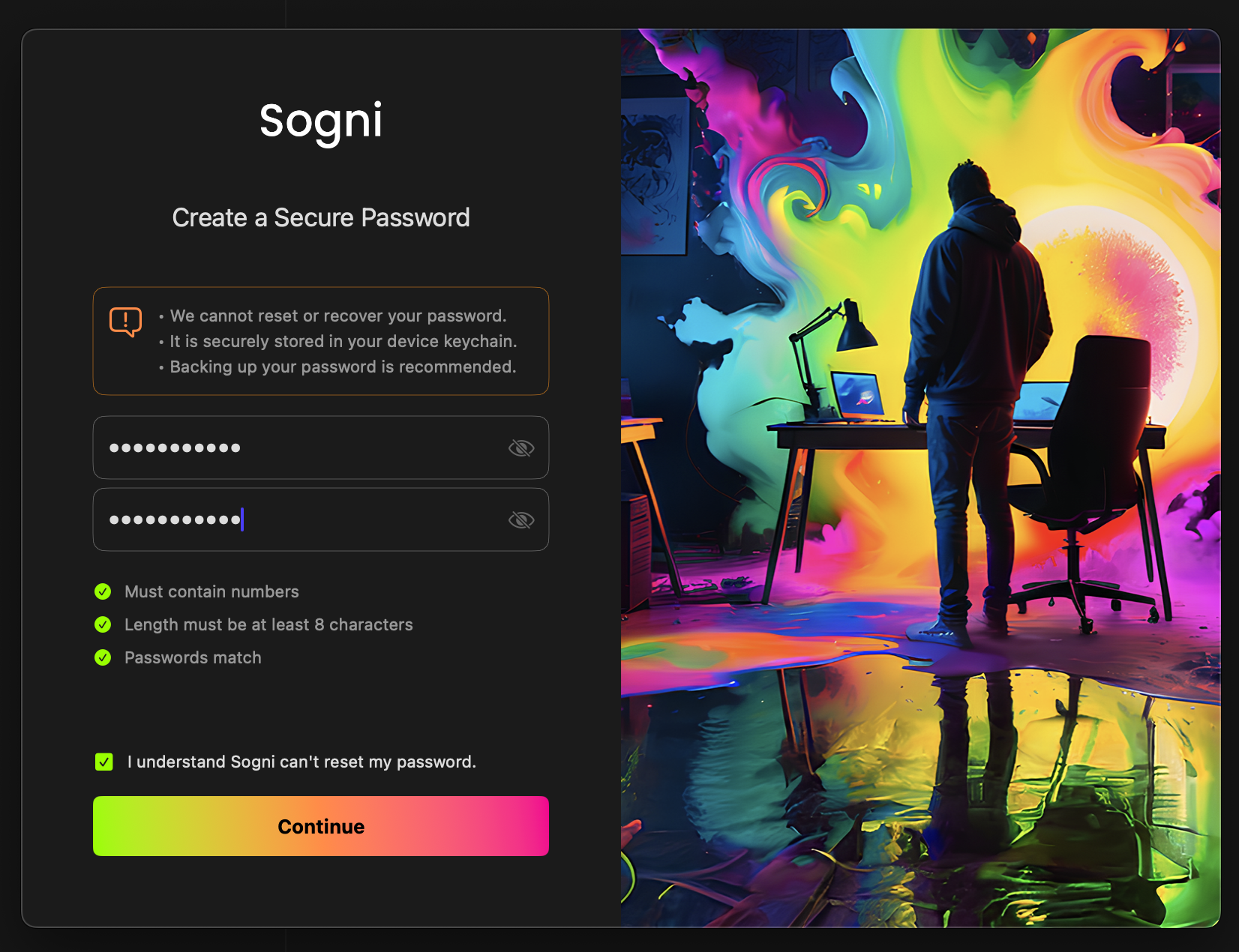
Create a Secure Password
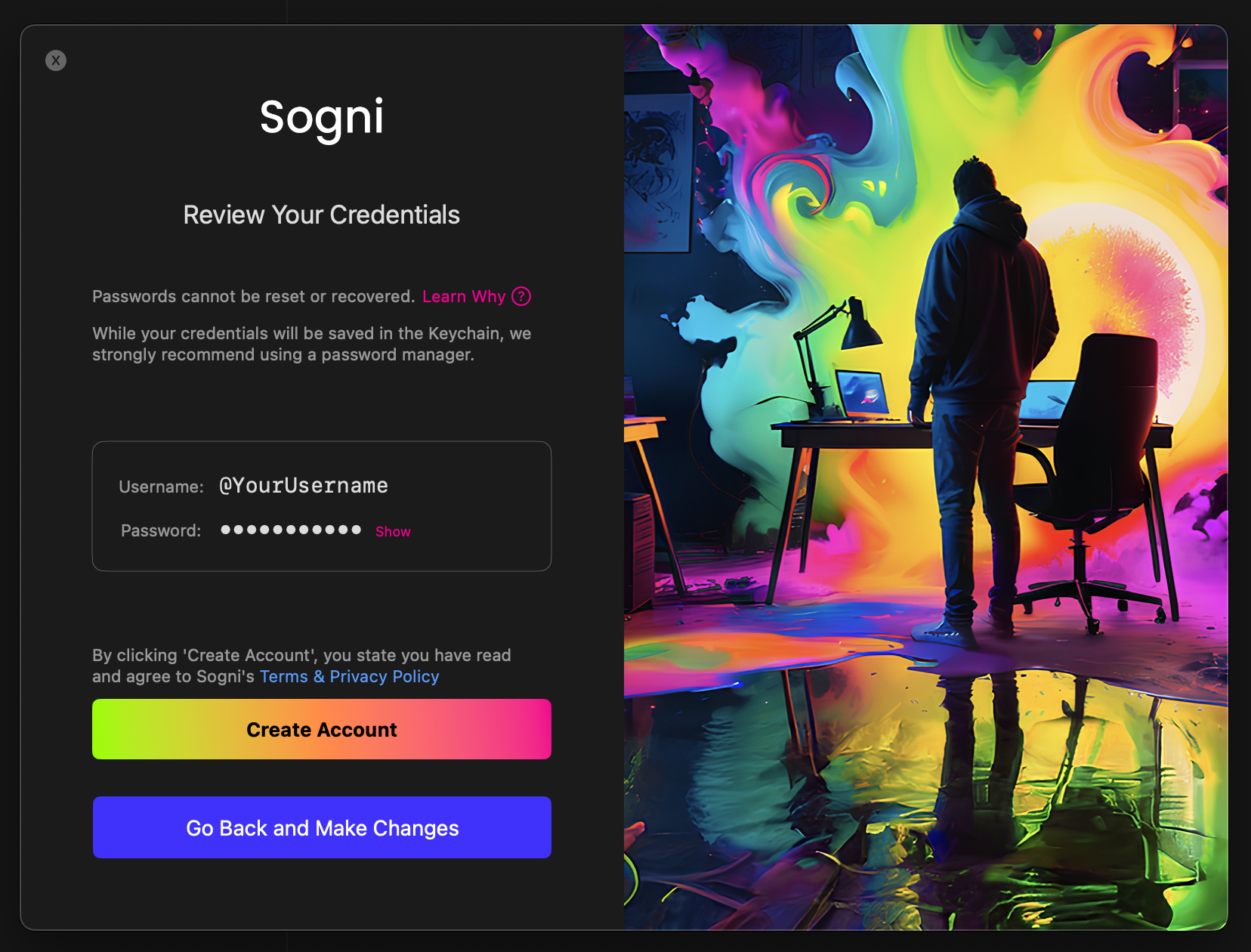
#Review Your Credentials
Your Sogni wallet is protected by a combination that uses your username and password. The private keys that give you access to your wallet are created from this combination. This process is one-way and highly secure, ensuring that only you can access your wallet.
For your privacy, passwords are not saved on any backend servers—they are only stored in your Mac's keychain, and only you have access to them.
Review and check your credentials. When ready, click Create Account.
#Verify Account & Claim Reward
Verify the email address tied to your account to receive a reward of extra render credits (Spark Points) for fast image generations using the Sogni Supernet by simply clicking the verification link sent to your email inbox during signup.
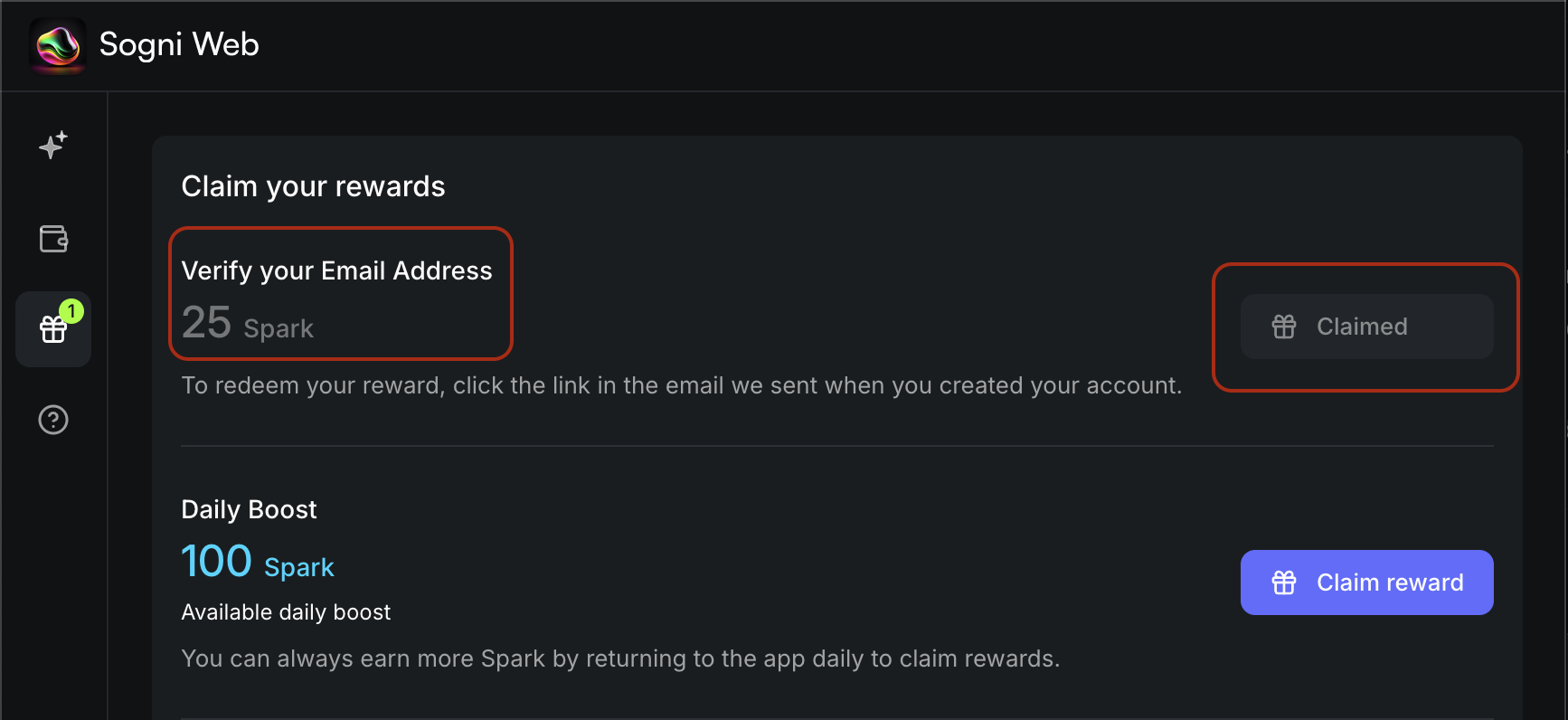
Please check your email inbox and click the verification link in the message you received from Sogni.
#Choose Processing
Next, within Sogni select the processing you'd like to use for your generations by clicking one of the buttons at the bottom the window.
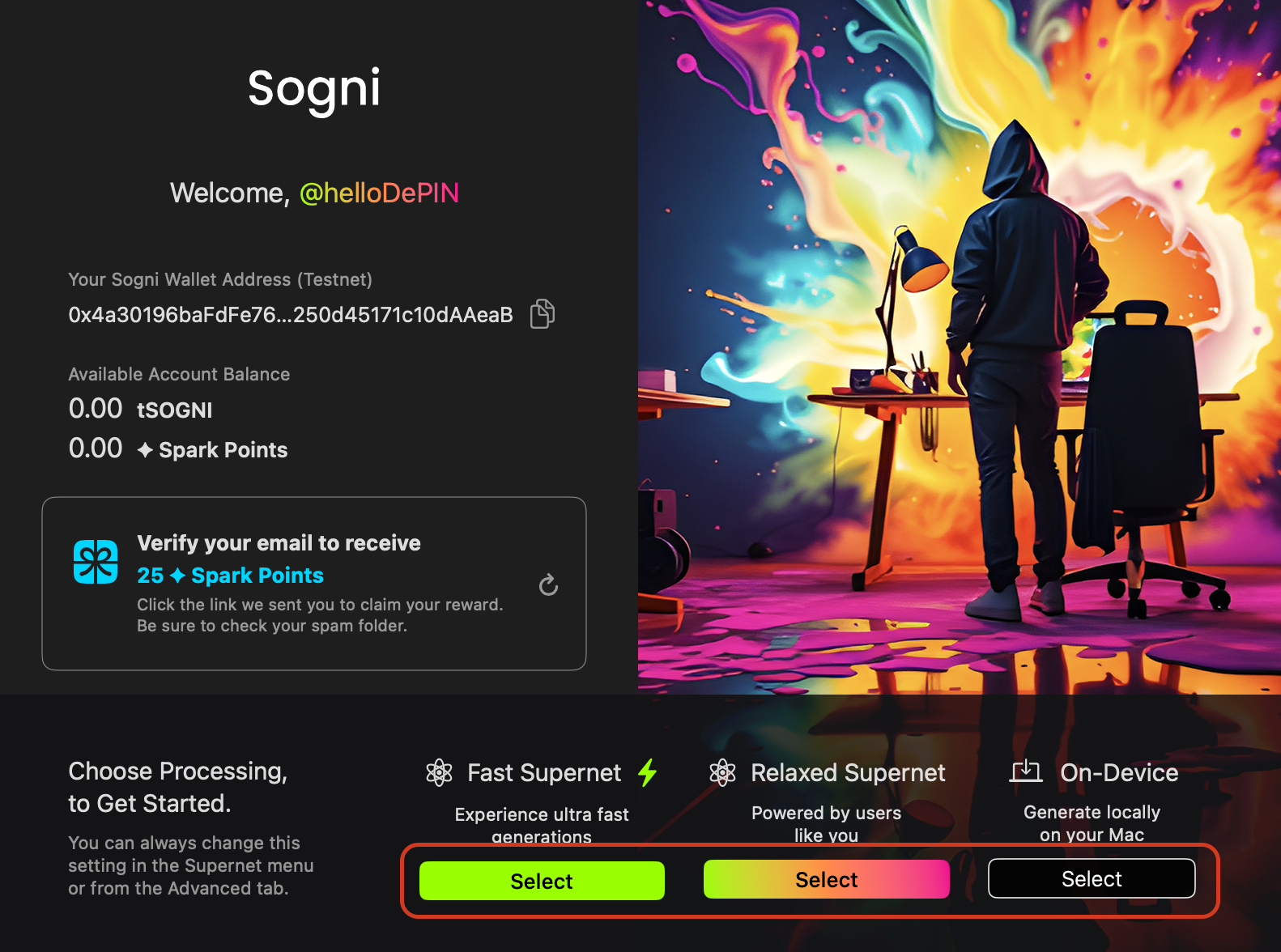
Fast Supernet : Ultra Fast Generations. Generate 16 SDXL Images with 20 steps in less than 5 seconds
Relaxed Supernet : Powered by users like you. Generate 16 images in parallel
On-Device : All processes are run locally on your Mac
View Comparative Information
| Swarm+ | Swarm | On-Device | |
|---|---|---|---|
Average Generation Time |
< 5 Seconds | 24 Seconds + | 60 Seconds + |
| Parallel Rendering | 16x | 16x | 1x |
| Need to Download Models? | No | No | Yes |
| Censored? | No | No | No |
| Internet Required? | Yes | Yes | No |
#Receiving the Email Verification Reward
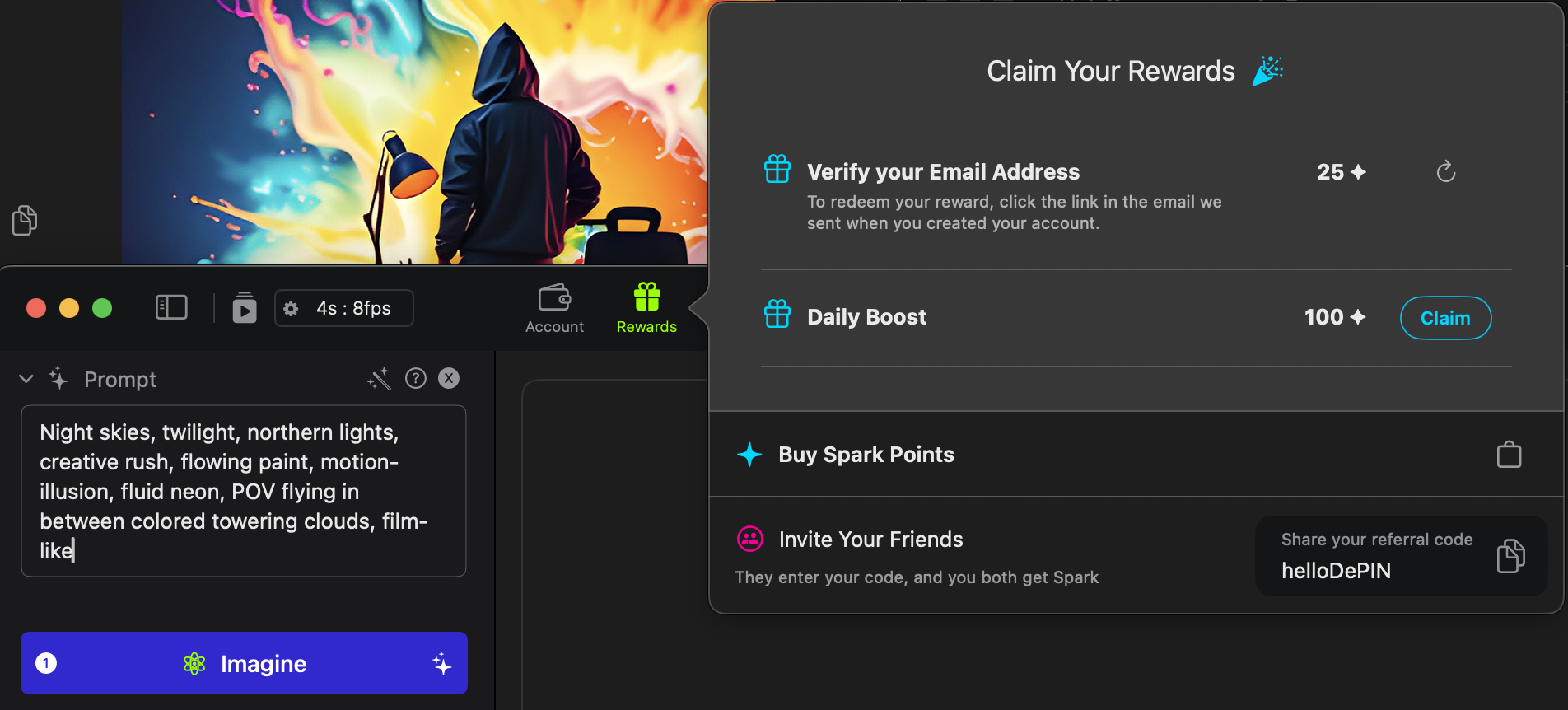
If you have verified your email address, you'll be able to claim extra render credits (Spark Points). Click the rewards icon within the top toolbar to see your claimed and available rewards.
Spending free Spark, and claiming the Monthly Boost, needs a verified payment method on the account — a 3-day free Unlimited trial or any Premium Spark purchase unlocks it permanently. See Monthly Boost eligibility.
#Need help? Join our Discord!
For any questions regarding the use of Sogni, tips, suggestions, bugs, sharing art, discussing AI and life, or simply hanging out, please feel free to join our Discord today!
Join Sogni Discord ✨