
Convert Image to Video
Convert to Video is the fastest way to bring a single image to life. It turns an existing image into a short video clip by adding motion, pacing, and cinematic direction—without requiring a full video setup.
This workflow is ideal for quick animations, testing ideas, or creating clips that you can later extend or combine.
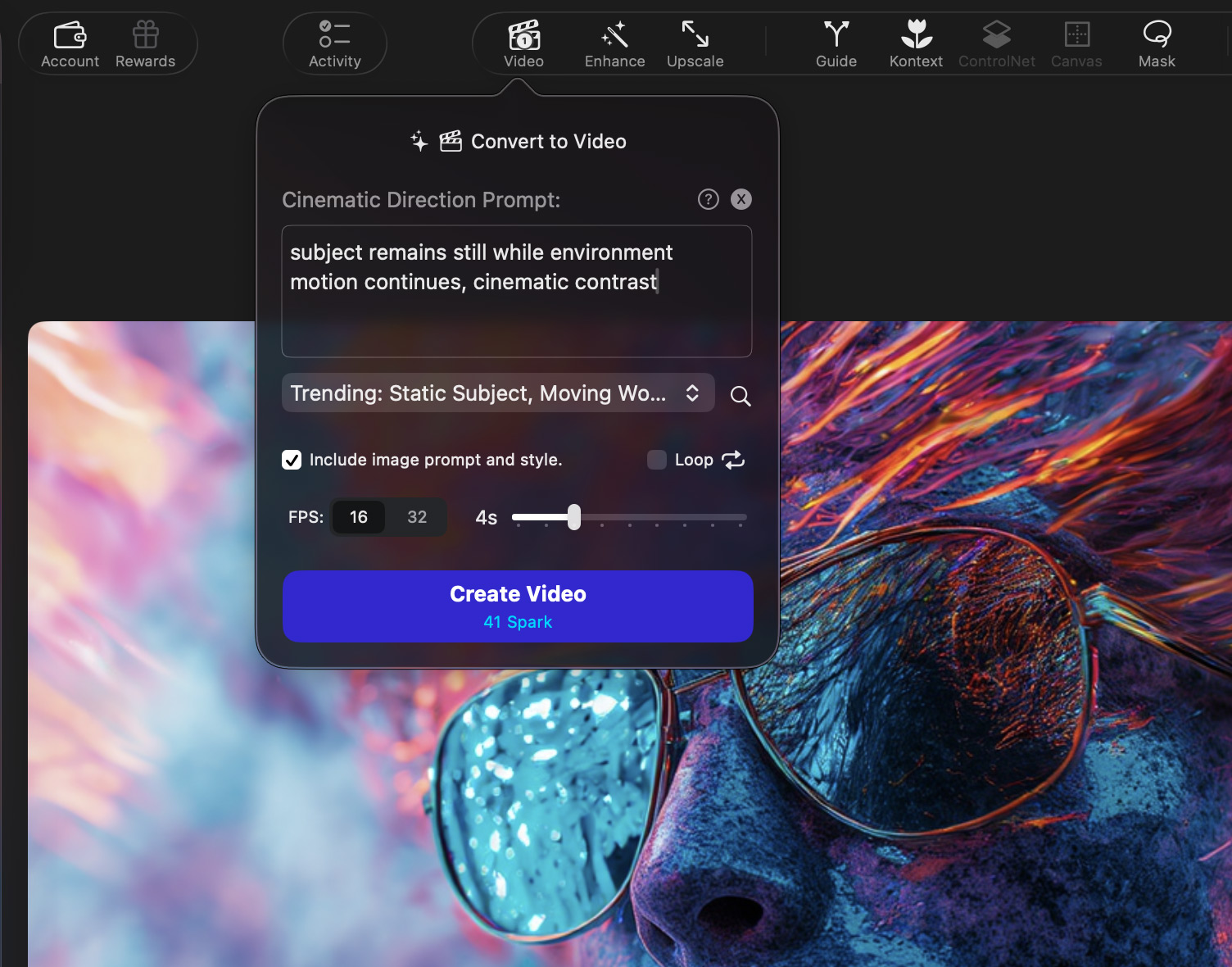
Access the Convert to Video feature from the top toolbar.
#Settings:
#Cinematic Direction Prompt
The Cinematic Direction Prompt describes how the image should move and feel over time.
Instead of redefining the image itself, this prompt focuses on:
- camera behavior (push-in, pull-back, handheld, orbit)
- pacing (slow, fast, rhythmic, drifting)
- cinematic style (music video, film shot, documentary, abstract motion)
Example
Rock music video, fast paced, slow shutter speed
Think of this as directing a shot, not rewriting the scene.
#Presets and Custom Direction
You can choose a preset for common cinematic styles or write your own custom direction.
Presets are a great starting point if you want predictable results.
Custom prompts give you full control when you already know the motion you want.
#Include Image Prompt and Style
When enabled, Sogni automatically carries over:
- the original image prompt
- the image’s visual style
This helps maintain consistency between the still image and the generated video.
Recommended: Leave this enabled unless you intentionally want the motion to reinterpret the image.
#FPS and Duration
- FPS (Frames Per Second)
Controls how smooth motion appears.- 16 FPS: cinematic, slightly stylized motion
- 32 FPS: smoother, more fluid motion
- Duration
Sets the total length of the clip.
Longer clips take more time and cost more to render, so starting short is usually best.
#Loop
When enabled, the clip is generated with looping in mind, making it suitable for seamless repeats or background motion.
Best used for:
- ambient scenes
- subtle camera motion
- abstract or rhythmic visuals
#Create Video
Once you’re ready, click Create Video to start rendering.
- Video rendering runs on Fast Supernet
- Currently supports Wan 2.2
- Progress appears in the Activity Window
- You can continue working while the job runs
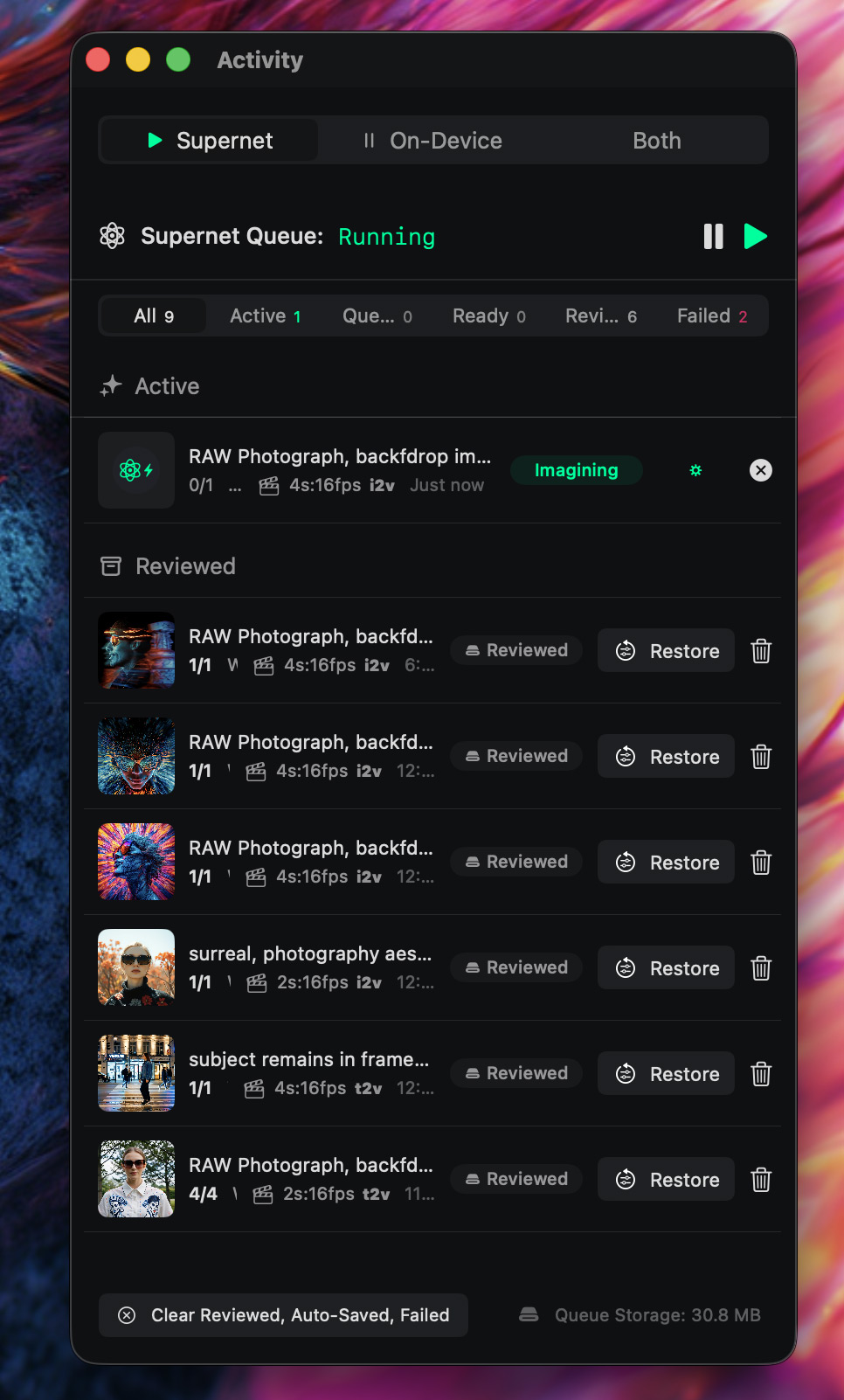
Progress appears in the Activity Window.
Use shortcut Command-1 or open it from the Windo menu.
When finished, the clip can be previewed, saved to the gallery, extended using frame references, or combined with other clips.
#Tips for Better Results
- Images with clear depth (foreground / background separation) animate best.
- If motion feels too static, add directional cues like slow push forward or camera drift.
- If motion feels chaotic, simplify the prompt and reduce stylistic adjectives.
- Short clips are easier to refine—extend them later using first/last frame continuity.